
Introduction
ShowMe WorldCare End User Manual
ShowMe WorldCare Overview
ShowMe WorldCare is a comprehensive reportable conditions system that can receive electronic reports from laboratories, health care providers and other data submitters. ShowMe WorldCare will replace the EpiTrax, EnvSurv and WebSurv applications so that all reportable conditions data are stored within one system. ShowMe WorldCare is capable of surveillance, registry, contact tracing, outbreak/cluster management, case management and reporting.
ShowMe WorldCare is managed by the Missouri Department of Health and Senior Services (DHSS) with the assistance of the Missouri Information Technology Services Division (ITSD) and Clinisys.
Compatible Browsers for ShowMe WorldCare
ShowMe WorldCare is a web-based application. This means that a web browser is needed to use it. ShowMe WorldCare is compatible with Google Chrome, Microsoft Edge and Safari. Attempting to use a browser that is not supported may cause the system to return an incompatible browser message. DO NOT use the browser’s back button as this may cause errors.
Quick Tips
- Save frequently using ALT+S as a shortcut to save from anywhere within a record.
- Dates can be entered with or without separators. For example, August 8, 2024, could be entered as either 08/08/2024 or 08082024.
- T-notation is useful when entering dates. Entry of t in a date field returns the current date. Entry of t-2 returns the date two days prior, while entry of t+2 returns the date two days in the future.
- Check the Additional Demographics box on Search and Jurisdiction Reviews to check all identities in case a person has an Alias.
- Drop-downs may sometimes appear cut off if the user clicks before the list has a chance to fully load. If that occurs, clicking off the drop-down and clicking on it a second time should fix the issue.
- When reviewing this manual, be sure to read the information called out as various types of tips such as SMWC Tips (ShowMe WorldCare Tips), Security Tips, etc., as this information will identify best practices or important concepts for using the system.
- Validation rules have been added to many fields in ShowMe WorldCare to prevent data entry errors. For example, certain fields may only accept data in a certain format, such as a date format, telephone number or email address. Other rules may prevent entry of incorrect data, even if it matches the required format. For instance, many date fields prevent the entry of future dates.
- When entering data in repeating sections with a table, sometimes a blank row will appear. Saving will remove the blank line if it is not supposed to be there. However, summary tables with no data entered always have one blank line as a placeholder.
Bookmarking ShowMe WorldCare
Creating a bookmark in a web browser may sometimes add more characters to the link. If this occurs, the next use of the bookmark will return an error. In order to prevent errors, the bookmark may need to be edited to remove those additional characters. In Google Chrome, this can be done by clicking on the 3 dots in the upper right corner of Chrome. Choose Bookmarks and lists. Then select Bookmark Manager. Go to the ShowMe WorldCare bookmark. Click on the three dots at the right side of it and select Edit. This will show the link that was bookmarked. Copy and paste this link (https://sso-showmewcprd.health.mo.gov/ShowMeWC-PRDWCUI/account/signin) into the bookmark and save it.
Logging into ShowMe WorldCare
ShowMe WorldCare End User Manual
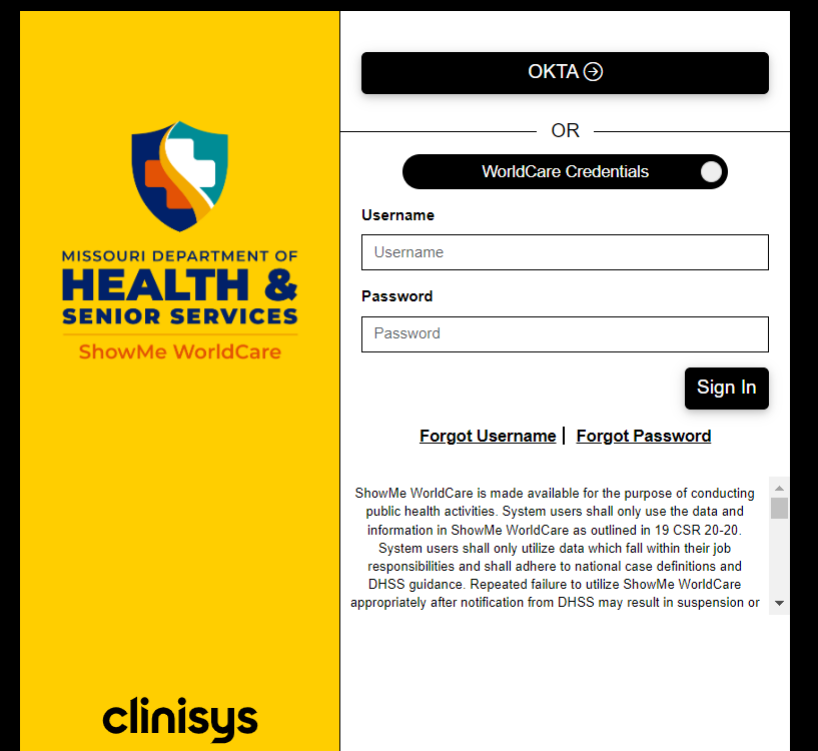
Okta Users
Users with an email address ending in health.mo.gov or lpha.mo.gov will automatically be set up to use Okta, the State of Missouri’s single sign-on (SSO) system. These users should click the Okta button near the top of the log-in screen. If a user is accessing ShowMe WorldCare on a device that has been configured to use Okta, they will not need to sign in as they will automatically be taken into the application. If they are NOT using a device configured to use Okta, the Okta button will not work and the user will need to sign in with the username and password as described below.
Other Users
Users with an email address that does NOT end in health.mo.gov or lpha.mo.gov must log in using the username and password provided to them by the ShowMe WorldCare Help Desk team. The user MUST NOT click any buttons, including the circle next to WorldCare Credentials. The user should only type the Username and Password into the appropriate boxes and click Sign In.
Changing Password
The first time a user logs in by entering a username and password or after a password reset has been completed, the user will be prompted to change the password from the temporary password provided by DHSS. The Current Password will be the temporary password. The user must enter their new chosen password in both the New and Confirm Password boxes. Click OK when finished entering the information to change the Password.
Okta users will not be prompted to change the password.

Security Questions
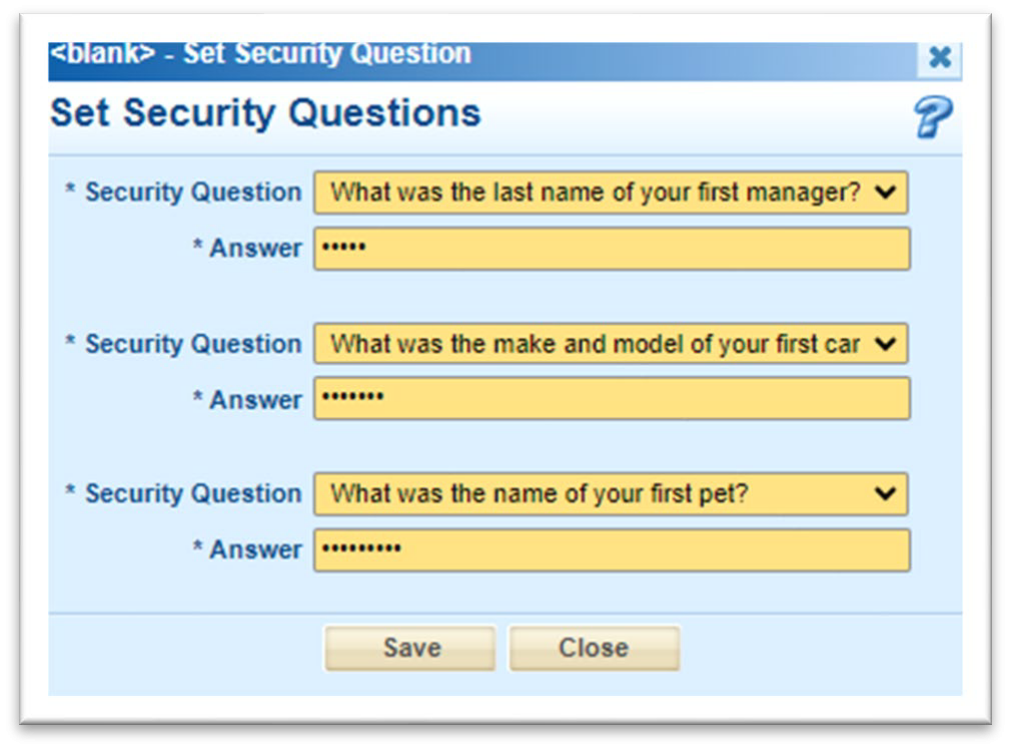
Users who log in with a username and password will be prompted to set security questions upon each log-in until this task is completed. Completion of the security questions will allow users to use the Forgot Username and Forgot Password features on the sign-in page.
Okta users will not be prompted to set security questions.
Security Measures in ShowMe WorldCare
ShowMe WorldCare End User Manual
DHSS automatically logs users out of systems after 15 minutes of inactivity. It is strongly recommended that users save frequently, especially before stepping away. Any entered data that has not been saved will be lost if the user gets automatically logged out. The ALT+S shortcut can be used to save from anywhere within a record.
DHSS requires that passwords be reset every 90 days. Users are strongly encouraged to complete the security questions on the My Profile menu so that they can reset their passwords as needed within the required timeframes. Any account with a password that has not been reset within the required timeframe will be locked. Users with a locked account will need to contact the ShowMe WorldCare Help Desk to request password resets.
ShowMe WorldCare Menu Bar
ShowMe WorldCare End User Manual
Navigation through ShowMe WorldCare occurs through the menu bar at the top of the screen. Users should NOT use the browser back/forward buttons as this may cause errors.
The menu bar shown in this example is from a System Administrator account. Other users may have more limited options depending on their specific security permissions.

Some menu options contain submenus. These can be viewed by hovering over the main menu option.
Each main menu option is briefly described below. Other sections of this manual will cover specific options in more detail.
| Menu Option | Description |
|---|---|
| Home | This is the landing page when a user signs in. The landing page differs based upon user security group. |
| Dashboard | Currently most dashboards will only display the user’s assigned tasks. Additional dashboards may be developed later. |
| My Case Load | Only investigators have a My Case Load tab. This page provides lists of records and tasks assigned to the investigator. |
| Search | Different tabs within the Search menu allow users to search for specific Person, Condition, Outbreak/Investigation or Group Event records. |
| Previous Searches | This menu option allows users to save specific searches or quickly repeat recent searches. |
| Jurisdiction Review | All incoming records to which the user has access based on their security roles are displayed here for a quick overview. Filtering options allow users to focus on specific types of records. |
| Outbreak/Investigation | This option links users directly to the Outbreak/Investigation search screen. |
| Staging | The Staging menu is only available to limited DHSS staff who will be processing incoming electronic messages. |
| Administration | This menu includes many sub-options related to the technical management and configuration of the WorldCare application and is limited to DHSS users with responsibility for maintaining various aspects of the system. |
| Dictionaries | Each drop-down and check box list within ShowMe WorldCare is housed in a dictionary. Limited DHSS staff are allowed to edit dictionaries but other users may have access to search and view certain types of dictionaries. |
| Reports | The WorldCare product comes with several built-in reports. Access to certain types of reports may differ based on a user’s security roles and whether that user’s agency has completed a data sharing agreement with DHSS. |
| Other Reports and Info | DHSS has the option to build custom reports and add them under this menu item. |
| Help | Users can access the general WorldCare manual using this menu item. |
| Notifications | Any notifications sent to a specific user will appear under this menu. |
| My Profile | Users can update their information, change their password, set security options and view details about their account access. |
| Logout | This menu item should be used to completely log out of ShowMe WorldCare. |
Logging Out
ShowMe WorldCare End User Manual
One of the most important menu options is Logout. Users should ALWAYS use the Logout option rather than simply closing the browser window. When a user is working in a record, ShowMe WorldCare locks the record to that user so that others cannot make changes. If the user simply closes the browser, the last record the user access remains locked to that user for 15 minutes. This will prevent other users from accessing the record, and if the initial user logs back in, that record could also be locked to them as the system will think the user has another session open.
My Profile
ShowMe WorldCare End User Manual
The My Profile menu shows details about the user’s account, including their name as entered in ShowMe WorldCare and username. To make changes, click the Edit button in the upper right corner.

Details of the user’s security access can also be seen on My Profile. Their assigned condition groups are listed in the first column under About, while the user’s jurisdiction group is listed in the second column. The user group for the account is listed under the avatar and name. In this example, the N/A next to condition group and jurisdiction indicate that the user has full access, as this user is a DHSS System Admin. Most users will not have full access and see specific condition groups and a jurisdiction listed for these items.
Certain users may generate documents out of ShowMe WorldCare that they wish to sign. If that is needed, the user can upload a signature using the Choose File option under Signature. The Authorized Signatories feature can be used to allow other individuals to sign on the user’s behalf.
Users can change their password or security questions using the Quick Links at the bottom of the screen. The Out of Office feature can be set when a user will be out of the office on extended leave as this will ensure that other users are aware and do not assign cases or tasks to that person.
Users of the EpiTrax, EnvSurv and WebSurv systems will typically be assigned comparable access in ShowMe WorldCare when first created. This means they may be granted access to conditions that have not yet gone live in ShowMe WorldCare. For example, in August 2024, a user may be granted access to the Lead condition but no records for that condition will be available until the EnvSurv transition in October 2024.
General Features of ShowMe WorldCare
ShowMe WorldCare End User Manual
Icons
Icons are used in many places throughout ShowMe WorldCare.
| Icon | Description |
|---|---|

| The Home menu icon returns a user to their landing page. The landing page varies by user role. For example, some users may land on the Jurisdiction Review page while others may land on Staging, depending on their specific duties. |

| The blue question mark indicates context-specific Help is available. This icon opens the generic WorldCare user manual at the appropriate section. |

| This icon indicates that an Instant Export is available and will open a pop-up for the user to make selections related to export options. |

| ShowMe WorldCare is not utilizing the Admin Call Log feature. |

| This icon appears near date fields and indicates that clicking it will open a date range option. |

| This icon opens a calendar for date selection. (Dates can also be entered directly into a field.) |

| Person record |

| Condition record (sometimes referred to as disease incident record) |

| Outbreak/investigation record |

| Group event record |

| Alerts |

| Type of person record
|

| Left: Drill-down button to access a dictionary to choose from options Right: Clears dictionary selection from the field |

| Network diagram |

| Version history – shows whether any different versions of the person exist (e.g., name changes) |

| Condition history – shows if other conditions were previously selected for the record |

| Process status history – shows when a new process status was assigned and by which user |

| Resolution status history – shows when a new resolution status was assigned and by which user |

| Optional task functionality not used in ShowMe WorldCare. Refer to the Tasks section of this manual for more details. |

| Electronic Filing Cabinet (EFC) – allows attachment of records. See Electronic Filing Cabinet section of this manual for more details. |

| Create album – allows creation of an album without first opening the EFC |

| Print All opens a selection box so the user can indicate what exactly to print. After making selections, click OK. This will open the selected document in a new print view window from which the user can Print the information or Download it as a PDF. |

| Letter repository – Letter templates can be stored here for generation of letters within the system. Currently no letter templates are configured in ShowMe WorldCare. |

| The magnifying glass indicates that an audit table is available. Different audit tables appear at different locations within the system. Fields at the top allow for some selections of what information to view. Clicking on a row in the Transactions data will reveal additional information in the Changes table at the bottom of the Audit Review screen. Generally, the Changes table shows the Original value and the Current value, detailing a change that was made. The Transactions row is stamped with the User, IP Address and Date/Time associated with that action. 
|
Electronic Filing Cabinet
When the Electronic Filing Cabinet (EFC) icon is clicked, a Filing Cabinet pop-up opens. Supplemental information such as PDF or Word documents containing medical reports or forms, image files such as xrays, etc., can be attached to the submitted record. Executable files cannot be attached.

Documents must be added to an album. Documents related to one another should be placed in the same album. For example, x-rays, lab tests, case reports, etc., from the same medical visit should be stored together in an album.
- Click New Album to add an album or select an existing album from the list of attached records and click the Open button in that album’s row. This will open the Album Viewer screen.
- For new albums, enter a Name for the album consisting of letters, numbers and spaces. Other characters will not be accepted.
- The Notes field can be used to provide additional information and will be displayed in the Description field of the attachment list.
- Click Add File(s).
- Click Browse Files to search for the files that need to be uploaded.
- Multiple files can be selected.
- Click the red X to remove any file selected in error.
- Review selected file names to ensure that no duplicate file names are listed as this will result in duplicate submission of the document to ShowMe WorldCare.
- After ensuring that the correct file names have been selected, click the Add Files button to begin the actual upload.
- If files are successfully uploaded, they will appear in the table in the Album Viewer.

Previously attached documents can be searched and viewed.
- Existing attachments can be sorted by either Date Received or Date of Message by selecting the appropriate radio button.
- The From, To, Name, Type and Description fields can be used to search/filter existing attachments. Click the Search button to run the search. The Clear button can be used to remove any previously entered information but will not change checkbox or radio button selections.
- The Preview/Print Images button will open an Image Preview with all images displayed. The user can then select and print only the desired images.
- If a previous album is listed, click the Open button at the right of the album to open the Album Viewer. Then click on the file Name to open the file.
The New Form button is used to select additional forms that could be used to provide further information.
Previous and Saved Searches
A very useful feature of ShowMe WorldCare is the ability to save searches and to re-run previous searches. Clicking on the Previous Searches item on the menu bar opens three possibilities.

Previous Search: This option will re-run the most recently performed search.
Saved Searches: On certain screens within ShowMe WorldCare, users can save a search. This feature is available on both the Search screen and Jurisdiction Review. After entering search criteria, enter a name in the Provide Search Name box and click Save Search. (An example is shown in the second screenshot in which a search named “Assigned_COVID” is being created on Jurisdiction Review.

The newly created Assigned_COVID search now appears on the user’s Saved Searches list. The search can be run by clicking the magnifying glass icon at the right. This can be a very useful feature for users who need to monitor certain record types on a regular basis.
To remove a saved search, click the red X at the right to delete it from the list.

Search History: While Previous Search returns only the single most recent search, Search History makes a larger number of recent searches available.

Person Records
ShowMe WorldCare End User Manual
Each individual entered into ShowMe WorldCare, whether as a contact, family member, etc., gets a person record. This makes it extremely important that users search to see if a person is already in the system before creating a new person entry.
A Person Record must be created before a person can be assigned a condition or designated as a Contact.
Caution Needed: Person records are available to all system users regardless of user group, jurisdiction security or condition security. Please do not enter any information on the person record that is specific to a particular condition as that information should be entered on the condition record. Otherwise, that information will potentially be visible to all system users. Likewise, please do not attach documents related to a specific condition in the electronic filing cabinet (to be detailed later in this manual) on the Person record. The electronic filing cabinet on the Condition record should be used instead.
Searching for Person Records
ShowMe WorldCare End User Manual
The best place to search for a specific person is the Search menu, Person tab. Several fields are displayed by default. To help prevent duplicate person entries, the New Person button used to create a new person record will be grayed out until a search is completed.

Search Tips and Tricks
- ALWAYS check the Additional Demographics box to search all identities for a person. If this box is not checked, the search will look only for the primary identity. Unfortunately, ShowMe WorldCare cannot currently be configured to check this box by default.
- For example, if a search is done for Calvin Cordozar Broadus Jr., and the Additional Demographics box is NOT checked, the search would not return any records under his more commonly known alias of Snoop Dogg.
- ShowMe WorldCare searches operate differently than searches in current systems, which may return a list of possible matches. ShowMe WorldCare only returns records that exactly match the search in some way. This can be tricky when aliases or other alternative names have been entered.
- For example, suppose a patient has used multiple names including Orson Pig, Farm Pig, Mighty Pig and Pink Pig. Orson and Farm have been used as the names on condition records, while Mighty and Pink are listed as aliases. No records return with the name Mighty Pig when it is searched since it was never used as the name on a condition. However, the user needs to be aware that the record would not have been returned if Mighty Pig were not listed as an alias on the record.

Clicking the + symbol to the left of the Name field will reveal additional search fields.

Basic Searches
The information below provides some brief guidance on using each of the search fields.
Wildcard: ShowMe WorldCare uses the percent symbol (%) as a wildcard. Wildcards can be used in text or date fields. Fields with which the wildcard can be used include Name, DCN (ID), Address, Zip and SoundEx fields.
The wildcard can be used to search for names with accents or other special characters. For example, the name Ayúda can be searched with Ay%da or Ay%.
The search function ignores hyphens and spaces. For example, the last name of Hyphen-Test can be found by the following searches:
- HyphenTest
- Hyphen Test
- Hyphen Test (2 spaces between words)
Since WorldCare searches are exact, a search for last name “Test” did NOT return the record for HyphenTest as it would expect “Test” to appear at the beginning of the name. Use of the wildcard symbol in front of the name (i.e., %Test) DID return the record for Hyphen-Test.
Case: ShowMe WorldCare searches are NOT case sensitive (e.g., searching for smith should return Smith, SMITH, smith, etc.).
Name: The name search is a “starts with” search. Users should enter the first several letters of each name. The last name should be entered first, followed by a comma and a space, then the first name (e.g., Smith, John).
- To search for a last name only, simply enter the last name (e.g., Smith).
- To search for a first name only, enter a comma followed by a space and then the first name (example: , John).
- To search by initials, enter the last initial, followed by a comma and a space, then enter the first initial (e.g., s, j).
- If a SoundEx search is desired, simply click on the SoundEx checkbox below the search fields. Soundex searches for names that sound the same but are spelled differently (e.g., John and Jon).
- The wildcard can be very useful in searching for name variations. For example, suppose a user needs to search for John Smith but is not sure if the last name is spelled Smith or Smyth. Inserting a wildcard into the search (Sm%th) will search for both possibilities.
Identifier Type/Identifier: Identifier Type is a drop-down list that allows the user to select a specific type of identifier. The default in ShowMe WorldCare is DCN but other options are available. After selecting the desired identifier type in the drop-down, enter the actual Identifier number in the Identifier field to be able to search by that ID number. For example, if a report arrives with only an Inmate ID number, the user could select Identifier Type of Inmate ID and then enter the ID number that appears on the report in the Identifier field.
Date and Age Fields
- The default search for date fields is to enter a specific date. Dates can be entered with dividers (e.g., 08/05/2024) or without dividers (e.g., 08052024).
- ShowMe WorldCare does not accept dates before 1890.
- Date fields in ShowMe WorldCare can also use “t-notation.” Entering “T” in the date field will return the current date. Entering T along with + or – followed by a numeric value will calculate a past or future date.
- Suppose a user is interviewing a new parent who reports that their child was born 7 days ago. The user could enter “T-7” to calculate the baby’s date of birth.
- If an investigator determines that a patient needs to isolate for 10 days, they could enter “T+10” to calculate the end of the isolation period.
- Wildcards can function in the date field. For example, suppose a user knows a patient was born in January 1951 but not the specific date. Entering 01/%%/1951 will return records with a date of birth in the month of January 1951.
- The default search for Age fields is to enter a specific age.
- Age searches return only records that are missing date of birth but have an age entered.
Date and Age Ranges: For both date and age fields in ShowMe WorldCare, clicking on the range option next to the field name will open From and To range boxes. The user may enter one or more dates to search for records.
- If only the From date is entered, ShowMe WorldCare will search starting with that date through all later dates.
- If only the To date is entered, ShowMe WorldCare will search up to that date as the latest possible date.
- Age searches return only records that are missing date of birth but have an age entered.
Address: Standardized postal service abbreviations must be used or ShowMe WorldCare will not return records. For example, use “930 Wildwood Dr” rather than “930 Wildwood Drive” when searching. (During entry of records, standardized postal service abbreviations should be used so that records will geocode and automatically be assigned to the correct jurisdiction.) For more information on standardized postal services abbreviations, please visit USPS.com. Do not use commas when searching for addresses in ShowMe WorldCare (e.g., use 930 Wildwood Dr Jefferson City rather than 930 Wildwood Dr, Jefferson City).
Zip: Zip code portion of the person’s address.
Phone: Person’s phone number
DOD: Date of death (range available)
State Number: State Number is used by the HIV condition and reflects the eHARS StateNo. Users not granted access to the HIV condition security group will not be able to see this field on Search.
Person Status: Select whether to search for persons who have status Active, Deceased or Unknown.
Status Flag: The Status Flag field appears on the Search screen but is not utilized in ShowMe WorldCare and should not be searched.
Person ID: A unique identifier assigned to the Person record by the ShowMe WorldCare application.
Medical Record Number: A Medical Record Number, or MRN, may be available for searching if it included in reports from providers or manually entered.
Created: Date the record was created (range available)
Advanced Searches
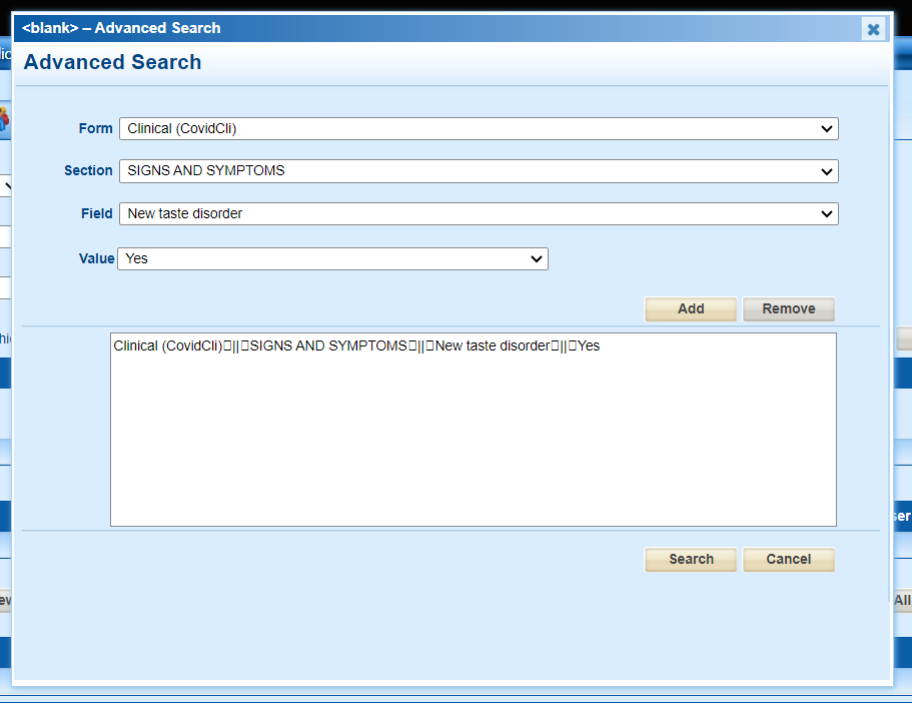
The Advanced Search option allows users to search for records that meet very specific criteria. Any question on the forms used to collect information on the conditions in ShowMe WorldCare can be queried using this function.
In this example, the user wants a list of individuals who reported a new taste disorder as a symptom of COVID-19. They selected the COVID Clinical form, Signs and Symptoms section, New taste disorder field, and a response of Yes, the patient has a new taste disorder. The user then clicked Add to move this query to the search box. Clicking the Search button at the bottom of the window will execute the search and return any records that meet this criteria.
Selecting an Existing Person Record
ShowMe WorldCare End User Manual
If the search returns the person of interest, select their person record by clicking on the person icon in the row with their name to open the person record.

Entering Person Records
ShowMe WorldCare End User Manual
After a search has been completed, the New Person button will be enabled in case the person is not already in ShowMe WorldCare and needs to be created. Clicking the New Person button will open a new Person record. Due to the length of this type of record, the screenshot extends over two pages but in the system the Person record is one continuous page.
Following the screenshots are sections describing some of the different fields and features of the Person record.


Mandatory Fields
Any fields that are shaded a different color, such as Last Name and First Name, are mandatory fields. Mandatory fields can also be identified by the * next to the field name.
Anonymous Records
Public health agencies sometimes receive records without a last name or first name. Clicking the question mark (?) icon to the right of the First Name will provide an anonymized name. The First Name will always be Anonymous. The Last Name will be numbers representing the date and time down to the second that the anonymous function was utilized.

Multiple Names, Prefixes and Suffixes
In the United States, it is most common for individuals to have three names: a first name, middle name and last name. However, the WorldCare product is also used in some other countries in which the use of additional names is common. Thus, Third Name and Fourth Name fields are available in case they are needed.

Please note that these are NOT alias or multiple identity fields and should not be used for purposes such as documenting a maiden name, also known as/AKA names, etc. If that information is entered here, those records will not return correct results when searched. Entering of multiple identities or aliases will be covered in a later section.
A Name Suffix such as Jr., III, etc. can be entered as well as a Name Prefix such as Mr., Ms., etc.
Identification Number Field (DCN)
ShowMe WorldCare uses DCN as the default external ID number. However, other external ID number types are available. To access the other types of external IDs, click the drill-down button to the right of the DCN field.

This will open the Additional Identifiers pop-up. To add an additional ID# for the person record, first click the New button at the bottom of the screen before filling in the information.
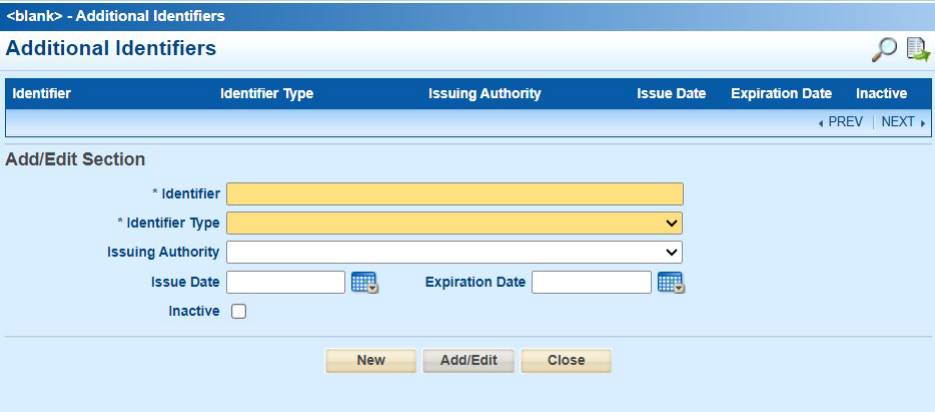
The actual ID number must be entered in the Identifier field and an option selected as the Identifier Type. Currently, the only other Identifier Types are Inmate ID and Source Person ID. Other identifier types could be added in the future. The additional fields can be added if available. After entering all information, click Add/Edit to add the new information to the record. The new information will appear in a gold bar at the top of the screen. To select a previously entered additional identifier, click on the identifier number in the first column and click Add/Edit.

Date of Birth/Age
The person’s date of birth should be entered in the DOB field. The Age should calculate based upon the difference between the current date and the DOB. Months and Days are set to appear only for individuals under the age of 2 years. Age can be manually entered if that information is known but DOB is unknown.
Address Entry
Addresses MUST be entered using United States Postal Service standards as detailed at USPS.com. Failure to adhere to these standards will prevent the system from correctly geocoding the address as well as automatic assignment to the correct jurisdiction. Please do NOT enter other types of information such as ATTN to a different person or passport numbers in the address fields as these will prevent geocoding.
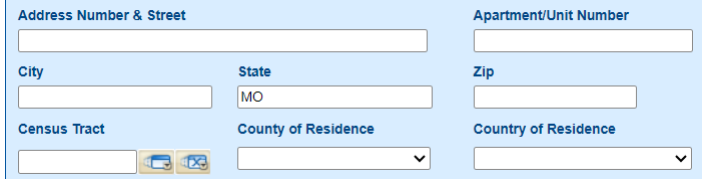
In most cases, if a valid address is entered, only the Address Number & Street, City, and State (set to MO by default) must be entered. After the record is saved, the geocoder will complete the Zip, Census Tract and County of Residence for valid addresses. Failure of these fields to auto populate indicates that the geocoding attempt failed and the user should double check to ensure that the address is correct.

The Zip code field only displays the first 5 digits of the Zip code. However, additional +4 digits are stored in the system and can be viewed on reports (to be detailed later in this manual).
Locations that are on the edge of counties may not geocode correctly. If this occurs, users can manually update the County of Residence field. County of Residence must be blanked out first and the record saved before the new county is selected.
SMWC Tip: Be careful when changing the County of Residence field! If it is changed, a prompt will appear asking if the case should be reassigned to a different jurisdiction. If the user indicates that it should be reassigned, it will be reassigned immediately. If the user does not have access to the new jurisdiction, they will no longer be able to access that record. If the prompt appears, the user should not reassign the jurisdiction at that point but should first finish any other work they need to do on the record. Then they can go to the Administrative tab and reassign the case by selecting a different agency in the Jurisdiction drop-down field.
To view additional details about the address, click on the drill-down next to the census tract field.

Country Fields
The Country of Birth field contains some additional options that are not available in other country fields. This is because some countries no longer exist but individuals may have been born in those locations before such changes occurred. Other county fields such as Country of Residence only contain countries that currently exist. Date of Arrival may be entered for individuals who came to the United States from elsewhere.

Other Contact Information
Several other types of contact information may be entered on the Person record such as various types of phone numbers, email address and other electronic contact information. If the person’s Work/School Location is known, the location can be selected from the Location directory by clicking on the first drilldown button to the right of that field. (The second drill-down button clears the field.) If the specific work or school location is not in the Location dictionary, please contact the ShowMe WorldCare Help Desk to add that entry. A work or school contact may also be entered.

Current Gender
The only field relating to gender in the Person record is the Current Gender field. This field relates to the person’s current gender identity and thus contains options beyond Female, Male and Unknown. Additional details on birth sex and other gender information can be entered in Condition Records on the Person tab, which will be detailed later in this manual.
Other Person Record Fields
Several other fields relating to a person are available for entry, including Marital Status.

A person may have multiple Medical Record Numbers or MRNs, so multiple entries can be added or viewed by clicking on the View drill-down button. The New button must first be clicked to add a new number/source.

Patient’s Parent/Guardian name can be entered but more details about family members may be added in the Family Members section (described in more detail later in this manual).
Occupation Setting is the type of occupation in which a person works, while the Occupation is the specific type of job the person completes within that setting. For example, the Occupation Setting may be Childcare / Daycare / Preschool but the person’s occupation may be Cook / Food Preparing Worker. More details can be provided in the Describe/Specify and Occupation Location free text fields. Additionally, some conditions have provided more detailed occupational questions within the condition record.

Person Status indicates whether the person is Active, Deceased or Unknown. If Deceased, Date of Death should be entered.

The Alerts button allows various types of alerts to be added to the patient’s record and pushed to any associated records.

Person Record Connections
The Person record contains three tables that reveal connections to other records.

The first table lists any condition or outbreak records attached to the Person record. In this example, a new person was entered and no condition records have yet been added so nothing appears.
Please note that although ALL users can view Person records, only records that fall within the user’s condition/jurisdiction security groups will be displayed within the record. For example, if a user only has access to general communicable diseases and the person only has HIV, which is not included in the general communicable diseases group, the system user would see a blank table as above because the person has no conditions or outbreaks that fall within their access.
If the person did have a condition or outbreak that fell within the user’s access, it would be displayed as seen in these screenshots. Clicking on the ID number will open the person’s Condition or Outbreak record.


The second table allows any Associations to other persons entered in ShowMe WorldCare to be viewed. Users can click Show All to see all associations or choose one of the more specific types (Patients, Contacts or Family Members). In this screenshot, the patient is linked to Georgina Jetson, who is a family member (indicated by the F record type) and has two conditions (indicated by the P record type). Jane Jetson is a contact to this patient (indicated by the C record type).

The third table allows viewing of any Group Events to which the person is linked. Group Events will not be used for the initial ShowMe WorldCare implementation but will be used later for aggregate condition reporting. More information about working with Group Events will be provided closer to that transition.

Adding a Person’s Family Members
The last section of the Person record allows entry of Family Members to the patient.
BEFORE ENTERING information, ALWAYS click the Link Person button at the right. This will allow a search of all existing persons in ShowMe WorldCare. If the person is found, simply click OK in the Select a Person pop-up to link them as a family member.

If the family member is not found as an existing person in ShowMe WorldCare, proceed with entering any known information into the family member section. If the address is the same as for the initial patient, the Copy Address button can be used to reduce duplicate data entry.\

Once all known information has been input for the first family member, click Add Family Member to input any additional individuals (remembering to search using Link Person first). This is a repeating section and there is no limit on the number of family members that can be entered.
Once all family members have been input, click Save to save the record. Any family members entered will now have their own Person records and can be found on the Person Search screen.
Person Versions and Multiple Identities (Nicknames, Maiden Names and Aliases)
ShowMe WorldCare End User Manual
ShowMe WorldCare creates different person versions to reflect different information on the same individual.
Please be very careful when making changes to a person’s information.
- In most cases, DO NOT make changes to an existing person on the Person record as changes on the Person record will typically change that person’s information THROUGHOUT the entire system, including on earlier condition at which point the person may have had different information.
- To add multiple identities or addresses (discussed further in the next section), enter a person’s Condition or Contact record to access their multiple identities or multiple addresses screens.
To illustrate the use of person versions, an example of a nickname followed by a last name change will be used.
Susan Mattison was born February 2, 2000. When she was 20 years old, she contracted COVID in April 2020. Symptoms started on 4/16/2020. Susan tested positive on 4/17/2020 and the test result was received at DHSS.
A Person Record is entered with this name.

A COVID-19 condition record is created and displays this name.

On 4/18/2020, an investigator opens the COVID-19 condition record and contacts Susan Mattison. The patient indicates Susan is her legal first name but that she most commonly uses the nickname Suzy.
The investigator should click on the drill-down button to the right of the Age fields to open the Multiple Identities pop-up. Any existing identities are shown in the table near the top. There is currently an existing identity for Susan Mattison.

To add a new identity, click New at the bottom of the pop-up. Select an appropriate Identity Type. In this situation, Alias / AKA was selected since Suzy is a nickname. Since Susan provided this information, the Source would be Self. In the First Name field, Susan has been replaced with Suzy. Once appropriate information has been entered, the new identity can be saved. This will create a new row in the table showing the new identity has been added.
IT IS VERY IMPORTANT that the date of birth be entered on each identity as the incoming electronic record processes look for matches to the name and DOB. If the DOB is not entered on one of the identities, that will not be considered a match.

The investigator may wish to select the original identity of Susan Mattison and add an identity type for clarity. In this scenario, the patient confirms that it is her legal name so Legal / Official Identity can be selected as the identity type and the original source was a lab result so Laboratory could be selected as the result. Both identities now appear in the table.

In the previous screenshot, note that Susan Mattison is marked as the Primary Identity in the Is Primary column. The primary identity will appear on the records in ShowMe WorldCare, although the nickname is also stored and searchable if the Additional Demographics box is checked on the search screen. The following screenshots illustrate that searches for both “Mattison, Susan” and “Mattison, Suzy” return the same record for Mattison, Susan, even though the name “Suzy” is not displayed as it is not the primary identity.


Since Suzy is the patient’s preference, the investigator may wish to return to the multiple identities box through the condition record and check Primary Identify on Suzy rather than Susan. Then Suzy will appear in search results and on any condition records since that is what the patient prefers to be called. Only one identify can be marked as the Primary Identify.

What would have happened if the investigator had simply changed the patient’s first name from Susan to Suzy in the First Name field on the Person record OR on the Person tab of the Condition record rather than using the multiple identities feature?
- The system would have handled the change as a correction and would not have retained a record of the legal name Susan.
- Suzy would be the only first name associated with this person and any conditions assigned to them.
- If future records were received under the name Susan, a duplicate person record may have been generated as no records would be returned when a user searched for Mattison, Susan.
- Incoming electronic messages are set to check both the primary identity and any multiple identities. Exact matches are automatically ingested into ShowMe WorldCare. Possible matches are routed to a queue where DHSS staff must manually review. This could result in delays in information being pushed into ShowMe WorldCare.
In July 2024, a woman named Suzy Hagerston contacts her local health department with some questions because she had contracted COVID-19 for the second time. The investigator searches for her name in ShowMe WorldCare but does not find her. Suzy then informs her that she may be in the system under her maiden name of Mattison but she got married on June 22, 2023.
The investigator searches for Suzy Mattison and finds her Person record. The investigator replaces the last name of “Mattison” with “Hagerston.”

When the investigator attempts to save the record, the following pop-up box appears asking if the name change should be considered a New Version, a Correction or Discarded.
- Discard will result in no change to the record.
- Correction should be used when a true correction is being made. For example, perhaps staff originally mistyped Mattison as Mattingly even though all records indicated Mattison. Choosing correction will update the name throughout the system.
- In this scenario, Suzy has had two valid names at different points in time. When she had her original COVID-19 case, her name was legally Mattison. For her second COVID-19 case, her legal name is Hagerston. Therefore, the investigator should choose New Version as this is NOT a correction but a new version of the same person.

(To review the information that has changed, click the + symbol at the left of the pop-up to view details.)

The investigator chooses New Version and saves. The investigator then saves the Person record and adds the new COVID-19 condition for July 2024.
A few days later, a different investigator receives a paper lab report on Susan Hagerston. A Person Search for “Hagerston, Susan” returns no records so the investigator broadens the search to only last name Hagerston. They have Additional Demographics checked on the search screen. The following records are returned.

Note that two names have been returned, Suzy Hagerston and Suzy Mattison. However, the Person ID column contains the same number, 1269. This is because both names are listed as different versions of the same person. If selected, both options will lead to the same Person record with the name Suzy Hagerston since is the current name.
Suzy’s Person record shows that she has had two conditions, both COVID-19.

If the earlier record with ID 1577 is selected, that condition record shows the name Suzy Mattison, as that was the patient’s name at the time of her first COVID case.

The later condition with ID 1582 shows the name Hagerston as that was the patient’s name at the time of the second COVID case.

Why didn’t the search for “Hagerston, Susan” return any records?
The answer to this question becomes clear by turning to the Multiple Identities pop-up by clicking the drilldown button to the right of the age fields within the COVID-19 condition record. When the new person version was created, it updated the primary identity, which was previously Suzy Mattison.

Since the patient’s legal name would now actually be Susan Hagerston, the investigator should add that as another identify. The patient provided their wedding date (06/22/2023) so the investigator could list that as the From Date within the new identity.

The investigator may also click on the Suzy Hagerston identity to add the from date of 06/22/203.

Notice that clicking on the Susan Mattison identity now shows that the system has changed the “To Date” field to 08/06/2024, which is the date the correction was made. This indicates that this identity should not be selected going forward as it is no longer current. The investigator could update this field to the patient’s wedding date of 06/22/2023 since that was the date of the name change.

The investigator notices that there is no identity for “Suzy Mattison” but thinks it is possible someone could search for that based on the other records. To be thorough, the investigator adds a fourth identity for Suzy Mattison. Now appropriate records should be returned no matter which name combination is searched.

Before leaving the Multiple Identities box, ALWAYS VERIFY that all identities contain the DOB to allow for appropriate name/DOB searching within ShowMe WorldCare and by incoming electronic record processes.
Please Note: Additional identities can only be added conditions using the Primary identity. In the example above, selecting the older COVID condition to access the Multiple Identities box will reveal that the New button is now grayed out. To add an additional identity, the newer COVID record with the Suzy Hagerston name would need to be accessed.
Entering Multiple Addresses
ShowMe WorldCare End User Manual
In ShowMe WorldCare, entry of multiple addresses is similar to entry of multiple identities.
The ONLY time users should make address changes directly on the Person record or on the Person tab of the condition record is when a correction (such as to fix a typo needs to be made) and the changes needs to apply system wide. If there is a multiple address or a new address, the multiple addresses pop-up must be used.
- Typing the address into the main fields will change that address system wide. If a person had a condition in the past while living at another address, the address on that condition should not be changed as it reflected the person’s jurisdiction at the time.
- If the multiple address option is used, any older records will retain the correct address/jurisdiction that were in effect at the time of that condition while any new conditions will reflect the current address/jurisdiction.
If a new address is entered, the system may ask if the address is a correction or a new version.
- If making a correction to the same address, indicate that it is a correction.
- Example: Fixing the spelling of the street name from Capital Ave to Capitol Ave.
- Corrections change the address on ALL records for that person which list that address.
- If you are changing to an entirely different address, indicate that it is a new version.
- Example: Updating from an older address at 123 Main St to a new address at 967 Broadway St.
- Indicating that an address is a new version will only update the address on current records and will not change the address on any older conditions the person might have.
In this example, the patient’s address was initially entered as 930 Wildwood Drive, Jefferson City, MO.

During the investigation, the investigator learns that the patient, who is a child, resides 75% of the time with one parent at this address but 25% of the time with a grandparent who lives next door at 920 Wildwood Drive. Thus, both addresses need to be on the record.
To access the multiple address option, click on the drill-down button next to the Zip code field on the Person tab of a Condition record.

In the prior screenshot, the table at the top of the pop-up shows that 930 Wildwood is the only address currently on file. To add 920 Wildwood, click New at the bottom of the pop-up and fill in the appropriate information.

The investigator decides to select the 930 address and update the address type to Residence Address (Primary Residence / Home) so that the patient’s living situation is clearer.

If the patient had moved instead of having multiple current addresses, the investigator should fill in the From Date and To Date fields, as appropriate. This will ensure that the correct address is used on the correct records on any past versus current records.
Version History (Address History)
To view a person’s address history, click on the version history icon in the icon tray near the top of the screen.

Version History Icon:

The pop-up window will display the current primary addresses. To view any multiple current addresses, drill-down to the Multiple Addresses pop-up by clicking the button to the right of the Zip field (explained in prior sections of this manual).

Person Versions Versus Multiple Identities/Addresses
ShowMe WorldCare End User Manual
It can be confusing to know when to use a person version compared to a multiple identity/address. Person versions are different from multiple addresses and multiple identities.
- Multiple addresses and multiple identities may exist for the same person at the same point in time and should be used to reflect this situation. Common examples where multiple identities/addresses should be used include:
- People may use multiple names at the same time, such as a legal name as well as a nickname or alias.
- People may live in multiple places at the same time.
- A child may live with different parents or other family members.
- Military personnel may reside at a military base but also have a permanent residence.
- College students may live on campus but return to their parents’ home frequently.
- A person version reflects information at a single point in time.
- In ShowMe WorldCare, this point in time is usually the date a reportable condition has occurred (e.g., onset date, diagnosis date, report date).
- Information such as the patient’s name and address reported as of a condition date should generally not change on that specific condition record in the future even if the person moves or changes their name later.
- Following the steps described in previous sections should result in the correct method being used to collect patient information. If changes are made that may indicate a new person version is needed, the WorldCare application will ask if the change should be considered a New Version or a Correction. (This was detailed in a previous section.)
Selecting an Existing Condition Record
ShowMe WorldCare End User Manual
Please Note: Changing a condition on an existing record will likely result in data loss as each condition uses customized screens. For example, changing a record from COVID-19 to Mpox after entry of COVID information has started will cause loss of any data entered in fields that may be included on COVID forms but not Mpox forms.
Best Practice: If a person is found to have an entirely different condition, change the original condition to Not a Case and open a new condition record for the correct condition to prevent data loss.
If upon first entry the wrong condition is selected by mistake and no further entries have been made on the condition-specific tabs (e.g., Laboratory, Clinical, Epidemiologic), it is fine to pick a different condition in the drop-down as no data loss should occur.
Selecting an Existing Condition Record from the Search Screen
After performing a search for the person, click the Person ID to open details about the Person record. If the person already has condition records linked to their Person record, those condition records will appear in the second table on the search screen.
SMWC Tip: Clicking on the Person ID may reveal multiple record types. Condition records will be identified in the Type column by the abbreviation DI and the purple icon. The abbreviation DI is used because in the default WorldCare application, this record type was called a Disease Incident record. In ShowMe WorldCare, it was determined that the term Condition Record should be used instead as not all the conditions tracked in ShowMe WorldCare will be diseases (e.g., environmental conditions).
Security Tip: A user will only be able to see condition records that fall within their specific security settings. This means that they will not see condition records listed if they fall outside of the user’s assigned jurisdiction or condition security. For example, if the user running the search below only has access to General Communicable Diseases, Suzy Hagerston could have records for other conditions such as hepatitis or lead that would not appear in their search results as the user does not have authority to work on those conditions.
To select one of the existing condition records, click on the condition ID for the appropriate condition record in the second table to open that condition record.

Selecting an Existing Condition Record from Within the Person Record
Existing condition records can also be selected from within the Person record. A table within the Person record shows all records linked to that Person ID. Select a specific record by clicking on its record ID within the table.

Selecting an Existing Condition Record from Within an Outbreak Record
For individuals connected to an outbreak, the condition record can be opened from the Outbreak record by clicking on the Record ID.

Creating a Condition Record
ShowMe WorldCare End User Manual
A new condition record can be created if one does not already exist. Condition records cannot exist on their own and must be linked to a Person record.
Condition records can be created from multiple places within ShowMe WorldCare.
Please Note: Some conditions can affect the same person multiple times. For example, an individual may have two COVID-19 condition records. These are NOT necessarily duplicates because the case definition for COVID-19 indicates that a new condition should be created after a certain amount of time has elapsed since the prior condition occurred. Other conditions may be lifelong or could provide immunity after the first infection, in which case there should only be one record for those conditions. Whether or not to enter a new condition record for the same reportable condition depends on that reportable condition’s case definition. For questions about case definitions and when it is appropriate to enter a new condition record, please contact the appropriate program that manages that condition or the District Epidemiologist for your region.
Creating a Condition Record from the Search Screen
A search for the person must first be conducted. Click on the correct person’s Person ID number. This will return a list of any condition records within your assigned security that have already been created. It is important to check to see if the person already has a condition before creating a new record.
If a condition record does not already exist for the current case or it is appropriate to enter a new condition based on the case definition, click on the New Condition/Record button near the bottom of the screen.

Creating a Condition Record from Within the Person Record
Suppose that the investigator wanted to review the Person record in more detail before determining whether a new condition should be entered. If it is determined that a new condition record is needed, the New Condition/Record button at the bottom of the Person record allows one to be generated.

Selecting the New Condition
Clicking the New Condition/Record button from the Search screen or within the Person record will open a generic new condition record. A status bar at the top of the screen lists the patient name, DOB and Person ID. The remaining fields in the status bar will be blank until additional information is completed.
All conditions in ShowMe WorldCare have a Person tab and an Administrative tab. These will always appear when a new condition is first generated. However, additional tabs will appear once a specific condition is selected in the Condition Being Reported field. Clicking the arrow or anywhere on that field will open the drop-down list of conditions for selection.
SMWC Tip: The Condition Being Reported is a type-ahead field. This means the first letter of the condition can be entered to jump ahead to that part of the list for easier selecting.

After selecting a condition, press TAB or click elsewhere on the screen to load the condition-specific forms. Most conditions in ShowMe WorldCare use Laboratory, Clinical and Epidemiologic tabs.

Some conditions may differ, depending on the nature of the condition, or use an additional tab. For example, the malaria requires follow-up to be performed after treatment has been completed. An additional Tx Outcome tab has been designed to capture that information.

Condition Record – Person Tab
ShowMe WorldCare End User Manual
The first tab for all conditions is the Person tab. It looks very similar to the Person record. In fact, information from the current version of the Person record will pre-populate this tab. For information most of the fields on the Person tab, please consult the Person record section of this manual.
Please Note: If changes are made on the Person tab within the Condition record, this could trigger a new version of the person. Person versions were discussed in detail under the Person record section.
The Person tab within Condition records does have two major differences from Person records.
- Condition records contain two additional questions about pregnancy on the Person tab. These questions will be enabled when Current Gender is Female, Other, Transgender Female to Male, Undifferentiated or Unknown. A reminder message will appear if one of these options is selected but the pregnancy questions are not completed. These questions are not asked on the Person record because pregnancy is not a permanent status and needs to be collected at the time of the condition being worked.
- An Additional Demographics section is available on Condition records to collect details about the individual. A screenshot is provided below and continues to the next page.
- Some of these questions relate to permanent status like Birth Sex, Other Race and Hispanic ethnicity. These questions were added here because it is not possible to modify the main demographics section in the WorldCare application.
- Other questions are included here rather than on the Person record because, like pregnancy status, they may change over time. For example, a person may be homeless at the time that they are impacted by one condition but may have a home at the time they are impacted by a different condition.


SMWC Tip: After completing the information on the Person tab, best practice is to click Save at the bottom of each screen. A warning message may appear indicating that the record has not yet been submitted. This is not a problem and the user should click OK. The record will be submitted at the end of the condition record. A tan bar will appear briefly at the top of the screen if the save is successful.

SMWC Tip: Best practice is to access the Administrative tab immediately after completing the Person tab. While it is okay to click Next from the bottom of the Person tab, this transitions the screen to the Laboratory tab rather than the Administrative tab. Scroll back to the top of the screen or press the HOME key to return to the return to the top of the screen and click on the Administrative tab.
Condition Record – Starting the Administrative Tab
ShowMe WorldCare End User Manual
Best practice is to complete certain fields on the Administrative tab immediately after completing the Person tab. This is because certain fields on the Administrative tab are used in calculations on the Laboratory, Clinical and/or Epidemiologic tabs and those calculations will not work if this information is not already entered.
A screenshot showing the main portion of the Administrative tab is provided on the next page.

The leftmost column of the Administrative tab contains Jurisdiction and Reporting Source information.
Case Information relates to the management of the case.
- Jurisdiction will be automatically populated if a valid address was entered for the individual. If not, the drop-down can be used to select the appropriate jurisdiction. Jurisdiction is a type-ahead field so typing the first letter of the jurisdiction will move the user to that section of the list.
- Secondary Jurisdiction can be utilized if needed. Secondary jurisdiction provides another jurisdiction with the same access to the record as the primary jurisdiction. This can be useful in a variety of situations. Examples include:
- A college student contracts an infectious disease while at school but decides to return their parents’ home to quarantine. The jurisdiction of the college as well as the jurisdiction where the parents live may both need to monitor the case and make updates to the record.
- Military personnel who are residents of other states may be stationed in Missouri. Out of State may be selected as the primary Jurisdiction based on the person’s permanent address. However, the Missouri jurisdiction containing the military base may need to perform follow-up with the individual while they are here. Although the case may not be assigned to Missouri for official case counts, the local jurisdiction could run a query on the Secondary Jurisdiction field at the end of the year to provide a report to their stakeholders on their actual workload.
- An Investigator can be assigned as the lead party for the case. Click on the drill-down icon to the right of the Investigator field to open the Link to Investigator pop-up. Search for the investigator in the Name field or click the PREV/NEXT links in the lower right to identify an appropriate investigator. The investigator’s number of open cases is displayed to help manage workloads.
- Security Tip: All users with access to the record based on jurisdiction and condition security settings will be listed as available investigators. This means that some DHSS staff with statewide access, such as District Epidemiologists, may be listed when a local agency accesses this box. Local users should be aware of this feature of ShowMe WorldCare and choose an appropriate investigator within their jurisdiction.

SMWC Tip: If an investigator has been assigned to a condition record, that record will now appear on the investigator’s My Case Load page which will be discussed later in this manual.
Reporting Source information reflects the source of the initial report to public health. For electronic records, this information will already be populated. For manually entered condition records, the user can utilize the drill-down icons to the right of each field to select the appropriate reporter. In this section, the user can also check if this is an Index case or assign a Cluster ID. Cluster IDs will be discussed in more detail in the Outbreak records section of this manual.
Various Dates are available in the second column of the Administrative tab.
- Date of Onset typically refers to date of symptom onset but for asymptomatic patients it may be appropriate to enter the date the individual was first aware they had the condition.
- SMWC Tip: This date as it is used in calculations on some of the other tabs.
- Date Specimen Collected is the date the person provided a specimen or sample to be tested.
- Date Specimen Resulted is the date the specimen or sample was actually tested. For rapid tests this may be the same as the Date Specimen Collected but it could be some time later for other types of tests.
- Date of Diagnosis is the date the patient was diagnosed with the condition.
- Date Received is the date the record was first received by ShowMe WorldCare. Date Created is the date the record was created in ShowMe WorldCare.
- For electronically received messages, these dates will typically match.
- For manually entered messages, the Date Received may be sometime prior to the Date Created. For example, DHSS still receives many faxes that are time-stamped as they arrive. When the information from that fax is entered, the user would enter the Date Received based on the time-stamped date as that is when the record was actually received by public health. If the record does not get entered into ShowMe WorldCare until the following day, the Date Created would be one day later.
- Episode Date looks at the Date of Onset, Date of Diagnosis, Date of Death, Date Received and Specimen Collected Date to pull the earliest date as the date the episode started. This is an auto populated field.
- Date Closed is the date the condition record is closed, which occurs when the Process Status is set to the last status.
- Date Discharged is the date the patient was discharged from medical care.
The third column includes various Statuses that apply to the case.
- Process Status indicates where the record falls within the workflow for the condition. Process Status and workflows will be covered in more detail later in this manual.
- The Reported by: checkboxes are only used for electronically received records and will be completed by the system for electronically received records.
- Provider (Portal) indicates the record was submitted through ShowMe WorldCare MODROP, the Missouri Disease Reporting Portal. This is available to providers who have not set up electronic feeds to send data to DHSS but would like to enter records on a case-by-case basis into an electronic application. These records feed into ShowMe WorldCare using a similar process as other electronically received records.
- SMWC Tip: Currently MODROP is available only for COVID-19 but DHSS plans to expand it to include other conditions at a later time.
- Lab will be checked if the record was received through electronic laboratory reporting (ELR).
- eCR will be checked if the record was received through electronic case reporting.
- Provider (Portal) indicates the record was submitted through ShowMe WorldCare MODROP, the Missouri Disease Reporting Portal. This is available to providers who have not set up electronic feeds to send data to DHSS but would like to enter records on a case-by-case basis into an electronic application. These records feed into ShowMe WorldCare using a similar process as other electronically received records.
- Imported Status will NOT be used on the Administrative tab and can be left blank. This status will be collected on other forms when needed.
- Resolution Status may be completed by the system when records meet certain criteria defined by the program that manages each condition. Users may need to update the Resolution Status if new information has been received. Resolution Status will be discussed in more detail later in this manual.
- Final Disposition will be enabled only when Resolution Status is set to Not a Case. Final Disposition will then contain options for the user to clarify why the record is not considered a case. Final Disposition will be discussed in more detail along with Resolution Status.
- Transmission Status will reflect whether the case has been reported by DHSS to the CDC.
- Date Sent will reflect the date the message to CDC was sent.
- Last Report to CDC will be the same as Date Sent if only one message has been sent to CDC. If an update message has been sent to CDC, Date Sent will reflect the initial send date while Last Report Date will reflect the date the most recent update was sent.
Toward the bottom of the Administrative tab is a section called Linked Outbreak/Investigations. If the condition record is linked to any outbreak, the Outbreak ID will be provided here. The View button to the right of the line will open a pop-up showing the outbreak record. Users can also navigate to the Outbreak record directly by clicking on the Goto button.
- SMWC Tip: Be sure to save the condition record before navigating to an outbreak record on any information entered up to that point may be lost.

If the condition record needs to be linked to an Outbreak, this can be done from the Administrative tab by clicking the Add button. This will open a list of outbreaks for that condition. Click on the Outbreak ID# to select the appropriate outbreak. If an incorrect outbreak is selected, click the Unlink button.

Below the Linked Outbreak/Investigations section is a box for Notes/Remarks. Clicking on the Add button at the lower right corner of this box will allow a note to be entered. Notes will be stamped with the date, time and user at the beginning of the note.
- SMWC Tip: Notes cannot be deleted as they become part of the official record when entered.
Some conditions will contain an additional section at the bottom of the Administrative tab that is specific to that condition. As a result, the questions will be different for different conditions and any questions about how to complete them should be directed to the appropriate condition program or District Epidemiologist. These are typically questions that are on initial case report forms. As an example, the additional section for COVID-19 is shown below.

If a user has started this tab immediately after the Person tab, press ALT+Save to save the record but DO NOT submit the record yet. Instead, press HOME to return to the top of the screen and select the tab immediately to the right of the Person tab, which will typically be the Laboratory tab.
If the user is finished with the record for the time being, press Submit to run validation testing against all fields. A Condition Verification pop-up will appear. The user should verify that the condition and jurisdiction for the record are correct. If not, Cancel out of the pop-up box and correct the record before choosing Submit again. Then click Continue. Submitting a record does NOT lock it.

Condition Record – Laboratory Tab
ShowMe WorldCare End User Manual
The Laboratory tab contains information about any testing that has been performed on the individual related to this condition.
Some conditions will contain an extra section at the top. This section typically contains questions from existing case report forms that may not be supplied by certain incoming laboratory reports. Please contact the appropriate condition program or District Epidemiologist for assistance with completing this section. These questions generally do not auto-populate and will need to be manually entered. As an example, an extra testing section from COVID-19 is shown below.

All conditions with a Laboratory tab contain a Lab Summary table. An example of this table is shown below. The columns included in the table may vary by condition. For instance, environmental conditions typically exclude the Resulted Organism column as those conditions do not involve organisms. If no test results have been received, the table will still appear but with a blank row ID 001 as shown below.

SMWC Tip: Clicking on one of the fields in the Lab Summary table will open the more detailed section about that specific test in the following Laboratory Information w/Provider & Facility (system) section. Otherwise, click the + symbol at the left of the section heading to expand all test results.
A screenshot of this section is shown on the next page.
At the very top of this section are two fields that can be used to manage exactly which test results are displayed.
- Show Results Beginning allows a date to be selected. For example, a person with a lifelong condition may accrue a lengthy list of tests over time. This field could be used to view only those from a recent time period.
- The Show All Results for Patient check box can be used to remove any date filters that have been entered and display all results again.
- SMWC Tip: Searching in this section could result in the loss of any unsaved data, so it is advised to save first by pressing ALT+S or clicking the Save button at the bottom of the tab. A warning message will appear if a user attempts to search without saving. Click OK to exit the warning and then save the data.

Laboratory Information w/Provider & Facility (system) Fields
Accession Number: This is a unique number used by laboratories to identify specific specimens/samples. This may also be listed as Specimen ID on laboratory reports.
Order Result Status: This field will be populated for electronic messages.
Specimen Collected Date: The date the specimen/sample was collected should be entered here.
Specimen Received Date: This is the date that the laboratory received the specimen/sample.
Specimen Source: The type of specimen/sample collected can be documented here.
- SMWC Tip: Specimen Source contains a VERY LONG list of options. However, this is a typeahead field. Click on the field and start typing the specimen source that is needed to jump to that section of the list.
Specimen Body Site: Some conditions note the Specimen Body Site along with the Specimen Source. If needed, the Specimen Body Site can be selected here.
Test Code/Resulted Test/Test Coding System: For electronically received tests, a test code that represents the type of test performed will appear in the Test Code field. The coding system that applies will be identified in the Test Coding System field, where L means Local Code and LN means LOINC. A label identifying the specific test type will appear in the Resulted Test field.
- SMWC Tip: Users performing manual entry of lab results only need to select the test name in the Resulted Test field. When manually entering lab results, please select one of the options beginning with a + sign in front of the test type. These appear at the top of the list. The options that do not begin with a + sign are used for ingesting electronic test results.
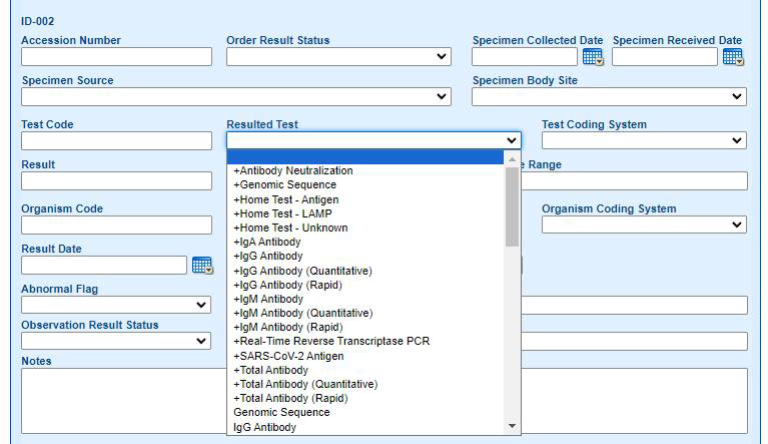
Result/Units/Reference Range: These fields relate to numerical test results. If a numerical result is provided, the units for that numerical result should be provided in the Units field. Numerical test results are typically compared to a range of “normal” values, which should be entered in the Reference Range field as that information is necessary for interpreting numerical test results.
Organism Code/Resulted Organism/Organism Coding System: These fields relate to tests with results such as Positive or Negative. The Positive, Negative, etc., label will appear in the Resulted Organism field code. The code that relates to that result will be listed in the Organism Code fields, while the Organism Coding System field displays the type of code (L for LOINC or SNM for SNOMED).
Result Date: This is the date that the laboratory completed the test and obtained the result.
Performing Facility ID: Laboratory name must be entered here.
The following fields may be populated if the information is sent in electronic messages. Manual entry users may need to enter this information if it appears on faxed or other lab reports.
- Abnormal Flag
- Relevant Clinical Information
- Observation Result Status
- Reason for Study
- Notes
Provider Name: This field refers to the ordering provider. Manual entry users will need to click on the drill-down icon next to the field to select the appropriate provider. This will open the Report Source Dictionary. Users can search by provider name at the top of this box or use the PREV/NEXT links in the lower right to move through the list.
- If the needed provider is included in the Report Source Dictionary, click the provider’s name and scroll to the bottom of the pop-up to click OK. This will automatically populate the following provider fields: Provider ID, Order Call Back Phone, Provider Address, City, State, Zip, County, Provider Fax and Order Call Back E-mail.
- If certain fields are missing information, the user can enter them into the record. However, this will not update the Report Source Dictionary. Please submit a ShowMe WorldCare Help Desk ticket with the Provider Name, Provider ID and any additional information that needs to be entered for that provider.
- If the appropriate provider is NOT listed in the dictionary, click cancel to exit the Report Source Dictionary Pop-up. In the Provider ID box, enter the Provider Name. Enter any other information that may be available about the provider in the appropriate fields. DHSS will monitor the Provider ID field to look for provider names entered there so that those providers can be added to the Report Source Dictionary. If the information is entered as noted here, a ShowMe WorldCare Help Desk ticket does NOT need to be entered.
- If drug susceptibility testing was performed, click the Drug Susceptibility Results button to add those results in a pop-up window. After entry of the first susceptibility result, the Add button can be used to add a new section if another result needs entered. Otherwise, click OK when entry is complete.
- SMWC Tip: Some conditions may contain an additional Drug Susceptibility section at the top of the Laboratory tab. If that section is provided, please be sure to also complete the section at the top of the Laboratory tab as that is where information used in reporting to the CDC will be collected.

After entering the available laboratory test information for the first test that needs to be entered, click Add to enter another test. Otherwise, Save the record. Then click Next to move to the next tab, typically the Clinical tab.
Condition Record – Clinical Tab
ShowMe WorldCare End User Manual
The Clinical tab will vary greatly by condition. Generally, this tab contains information related to the patient’s medical record. Examples of the types of sections that may commonly appear on the Clinical tab for many conditions are briefly described below.
SMWC Tip: The Clinical tab utilizes many business rules that enable particular fields only when certain criteria have been met. For example, a user may not be able to enter an onset date for a specific system unless they have indicated that the patient experienced that specific system. These business rules 1) prevent inappropriate data entry and 2) help users know which fields actually need to be completed.
SMWC Tip: The Clinical tab for some conditions can be lengthy. Specific conditions may have different business rules that determine which sections are expanded or collapsed by default. For example, all sections on the COVID-19 Clinical tab are set to be collapsed by default with only the section headers visible for easy navigation. Each section can be expanded or collapsed by clicking the + / - button to the left of the section header. In addition, the purple and green + / - buttons in the upper right corner of the Clinical tab can be very useful for expanding/collapsing multiple sections at once. The green button expands or collapses all sections. The purple button can be used to expand/collapse empty sections.
Interview Date: The user can document when interviews with the patient occurred. This is a repeating section so the Add button can be used to document multiple dates if the patient is contacted more than once.
Clinical Information: The section generally asks if the patient is symptomatic and follow-up questions. Onset date will be pulled into this section from the Administrative tab.
Signs and Symptoms / Complications / Clinical Presentations: The lists in these sections for will vary for each condition and were pulled from existing case report forms or other reference materials.
Medical History – Pre-Existing Conditions: This is a place to document whether the patient has any pre-existing conditions that may put them at risk due to their current reportable condition. These questions usually cover a general category, such as Chronic Lung Disease. If the patient indicates they have chronic lung disease and the user enters Yes, a follow-up box will be enabled so the specific type of chronic lung disease can be entered.
Medical History – Other Medical Conditions: This section asks if the patient was immunocompromised at the time of diagnosis. If yes, follow-up boxes allow entry of specific types of immunodeficiency as well as medication(s), disease(s) or other condition(s) the patient has that may weaken their immune system.
Medical History – Past Diagnosis: If the patient has been previously diagnosed with this condition, that information can be documented in this section. This information can be very helpful to investigators.
- Some conditions can only be contracted once. If the person responds that they have been previously diagnosed with one of those conditions, that provides a clue to the investigator that perhaps the person should not be counted as a new case.
- If the person had a previous episode of the disease, the investigator may wish to obtain records related to the earlier incident. Fields in this section allow documentation of the timing and the patient’s residence at the time of the prior diagnosis.
Vaccination Status / Query ShowMeVax / Vaccination History (Details): These sections are available for conditions which have vaccines.
- The first section asks several general status questions.
- The Query ShowMe Vax section contains a summary table showing any vaccines previously entered. Clicking on the information in any row in the table will open a detailed record of that vaccination in the Details section.
- The Query ShowMe Vax section also contains a button labeled ShowMeVax. If this button is called, a call for data is sent to the ShowMeVax system and will pull in any vaccine records for that person.
- If there are multiple possible matches in ShowMeVax, a pop-up of the options will appear so the user can select the correct person.
- Clicking on the ShowMeVax button multiple times will result in duplicate vaccines loading from ShowMeVax. If that happens, simply click the Delete button at the bottom of the duplicate section. (This may occur if a user has returned to the record to see if the person has received another vaccine since the last follow-up. It is okay that the duplicate vaccines load as they can be deleted.)
- BEST PRACTICE: If a system user has received a report of a vaccine that does not appear when the ShowMeVax button is used, please enter that vaccine in ShowMeVax since that is the official record for vaccinations in the State of Missouri. While it is possible to enter the vaccination into the Details section in ShowMe WorldCare, that information will NOT be sent to ShowMeVax and that vaccination will be missing from the official record.
Hospitalization/Hospitalization Details: If the user indicates the patient was hospitalized in the Hospitalization section, additional questions will be enabled in that same section and the Hospitalization Details section will expand. Click on the first blank ID number in the summary table or click the Add button at the lower right of the Details section to add information about the specific hospitalization.
- The Hospital Name should be searched in the dictionary using the drill-down button to the right of that field. Various search boxes at the top of the Location Dictionary pop-up can be used to find the appropriate hospital. Click on the hospital name followed by OK at the bottom of the pop-up box to select a hospital. If the hospital is not included in the Location Dictionary, enter the hospital information in the next field. DHSS staff will monitor that field and add those hospitals to the Location Dictionary.
- If the Admit date and Discharge / transfer date fields are completed, Total number of days should calculate automatically.
- When finished entering details about one hospitalization, click Add to enter details about another hospitalization. Otherwise click OK to exit the Hospitalization Details pop-up.
Treatment / Management: If the user indicates the patient received treatment for this condition, the Treatment / Management Details section will be enabled and expand. Click on the first blank ID number in the summary table or click the Add button at the lower right of the Details section to add information about the specific treatment. Some conditions will contain fields with specific lists of drugs. Others may provide more general fields in which treatment names may be typed. When finished entering details about one treatment, click Add to enter details about another treatment. Otherwise click OK to exit the Treatment / Management Details pop-up.
Outcome/Pregnancy Outcome: This Outcome section contains three main subsections.
- Case Outcome can be used to document the resolution of the case. Depending on the selection made, additional questions may enable so further detail can be provided. For example, if the case was Lost to follow-up, the reason can be indicated.
- A death data section allows documentation related to causes of death and autopsy.
- If the patient is a Fetus/Newborn, a section allows documentation related to the impact of the condition on the pregnancy/birth. If the patient is a pregnant person, this section should be left blank but the Pregnancy Outcome section should be completed. It contains questions about the condition’s impact on the pregnancy/birth.
Public Health Interventions/Tasks/ Case Notes: These sections will be described in more detail later in this manual.
When finished with all sections for the particular condition, Save the record and click Next to move to the next tab, which is typically the Epidemiologic tab.
Condition Record – Epidemiologic Tab
ShowMe WorldCare End User Manual
The Epidemiologic tab will vary greatly by condition. Generally, this tab contains information related to the patient’s exposures during their incubation as well as situations in which the patient may have exposed others during their infectious period. Examples of the types of sections that may commonly appear on the Epidemiologic tab for many conditions are briefly described below.
SMWC Tip: The Epidemiologic tab utilizes many business rules that enable particular fields only when certain criteria have been met. For example, a user may not be able to enter the date a particular preventive measure was enacted unless they have first marked that the specific preventive measure was taken. These business rules 1) prevent inappropriate data entry and 2) help users know which fields need to be completed.
SMWC Tip: The Epidemiologic tab for some conditions can be lengthy. Specific conditions may have different business rules that determine which sections are expanded or collapsed by default. For example, all sections on the COVID-19 Clinical tab are set to be collapsed by default with only the section headers visible for easy navigation. Each section can be expanded or collapsed by clicking the + / - button to the left of the section header. In addition, the purple and green + / - buttons in the upper right corner of the Clinical tab can be very useful. The green button expands or collapses all sections. The purple button can be used to expand/collapse empty sections.
Infection or Incubation Timeline: These sections contain fields for the date of onset (pulled from the Administrative tab if entered there) as well as the dates of the patient’s incubation period. Some conditions also have fields for the patient’s infectious period. Some conditions contain rules that will autocalculate these dates based on the onset date if it has been entered on the Administrative tab. Some conditions that have more complex or variable incubation/infectious periods may not auto calculate so the user would need to calculate and enter those dates.
Travel History/Travel History (Details)/Travel History – Method of Travel (Details): These sections ask about the patient’s exposure to travelers as well as the patient’s own travel history. If the user selects Yes that the patient traveled during the incubation period, the Details section will expand so that information about travel dates and locations can be entered. Some conditions which are highly infectious contain an additional section to collect details on any flights or vessels on which the patient may have traveled.
Import/Exposure: These questions are included on CDC case reports for most conditions. They relate to the source location of the condition. There are also several follow-up questions based on the Imported Status such as imported or exposure location, depending on the status selected. The default WorldCare product has a built-in question for the Imported Status on the Administrative tab in a section that cannot be modified. In order to group the other related questions in a logical way, DHSS programs created a customized Import / Exposure Status section which typically appears on the Epidemiologic tab of condition and contact investigation records. Users should complete the Import / Exposure section and should not be using the Imported Status field on the Administrative tab. (DHSS has asked the vendor if the Imported Status field on the Administrative tab can be removed or hidden. Unfortunately, this is not possible at this time.)
Possible Sources of Exposure During the Case’s Incubation Period/Possible Settings of Transmission During the Case’s Infectious Period: These sections allow collection of data on the patient’s presence in certain types of high-risk locations, such as congregate living facilities, during their incubation and infectious periods. If the user indicates that the patient was present in one of the listed categories, additional Detail sections will expand so that information about the specific facility can be entered. The Detail sections are repeating sections, meaning the Add button can be used to collect information if the patient was present in more than one type of high-risk location. For foodborne conditions, these sections may also include questions about food handlers.
Risk Factors/Exposures/Other Exposures/Exposure – Other Ill Persons: Some conditions contain sections on risk factors or exposures that are specific to the condition. These may include sections on animal, food or other types of exposures. Most conditions also contain general Other Exposures sections to document exposures that may be pertinent but may not be covered by any of the more specific sections. Conditions with person-to-person transmission typically also have a space to document exposure to other ill persons.
Transmission Mode: The mechanism by with the disease or condition was acquired by the patient can be documented here.
Preventive Measures (Health Department Response): Agencies can document the types of actions taken to prevent spread of the condition.
Employment History/Standardize Occupation and Industry (O/I): Certain conditions may relate to a person’s occupation. In this section, the person’s Occupation and Industry can be typed into the appropriate fields. Those fields are linked to the federal databases of Bureau of Labor Statistics (BLS) and North American Industry Classification System (NAICS) codes. After the record is saved, click the Click to Standardize O/I button in the Standardize Occupation and Industry (O/I) section to load the appropriate BLS and NAICS industry codes from those sources. Details about the specific employer can also be entered in this section. If the employer is not found in the Location dictionary, details can be entered in the following box, which DHSS will monitor to add new employees to the dictionary.

Contact (system): Contacts of the patient should be entered in this section. More detail on working with contact will be provided in the Contact Investigation section of this manual.
Public Health Interventions/Tasks/ Case Notes: These sections will be described in more detail later in this manual.
After all sections are completed, Save the record and click Next to move to the Administrative tab.
Submitting a Condition Record
ShowMe WorldCare End User Manual
When all other tabs have been completed, the user should return to the Administrative tab and complete any additional information that may have been obtained while working on the case. Once all information has been entered, click Submit at the bottom of the Administrative tab.

A Condition Verification pop-up will appear. The user should verify that the condition and jurisdiction for the record are correct. If not, Cancel out of the pop-up box and correct the record before choosing Submit again. Then click Continue.
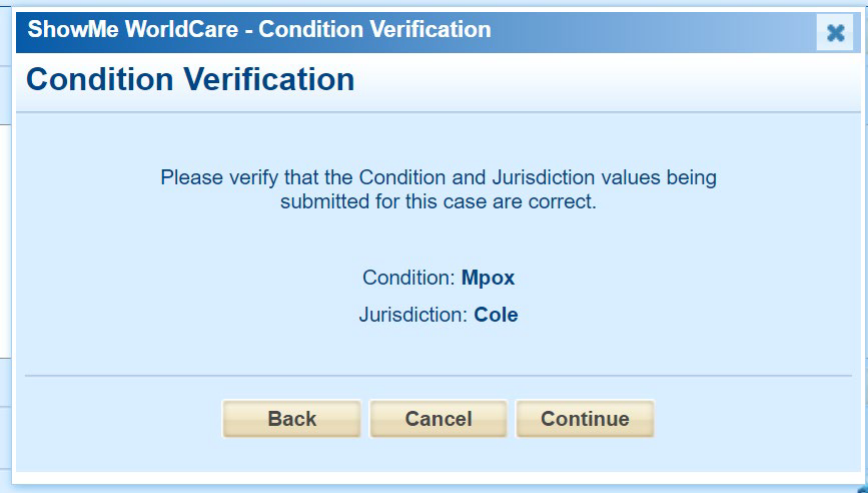
Submitting the record performs validations across all tabs of the condition record. It does NOT lock the record.
Reassigning a Case to Another Jurisdiction
ShowMe WorldCare End User Manual
In ShowMe WorldCare, assigning a case to another jurisdiction is very easy. Simply open the Condition Record that needs to be reassigned. Click on the Administrative tab. Click on the drop-down menu under Jurisdiction to select the correct agency to receive the case. If the original agency had started working on the case and had updated the Process Status, reset the Process Status to Entered before clicking Submit. This will help the other agency recognize this as a new case. If the Process Status is left as Under Investigation or Closed by Agency, the new agency may not identify it as a new case to be worked.
ALWAYS reassign a case on the Administrative tab. Do not change the County of Residence on the Person tab to reassign the case.
Reassigning a Case from Another Jurisdiction
ShowMe WorldCare End User Manual
Sometimes an agency may become aware of a case which it needs to work but that is assigned to a different agency or perhaps not assigned to any agency yet. In prior systems, an agency could see which other agency a case might be assigned to but could not edit it. This required one agency to contact the assigned agency to transfer the case. This sometimes resulted in delays in public health action or assisting patients.
ShowMe WorldCare works differently, in that an agency is blocked from seeing cases/contacts not currently assigned to it. Although this is an important security/privacy measure, it is recognized that reportable conditions do not always respect jurisdictional boundaries. To remove barriers in accessing information in order to help patients and allow public health action, ShowMe WorldCare uses an Unlock feature which allows agencies to access records outside their own jurisdiction in limited situations if needed. This type of access requires a justification to be entered.
For example, patient Johnny Appleseed contacts Training Health Department (THD) with questions about his recent diagnosis of COVID-19. When THD staff search for Johnny’s record, they find a person record but do not see any conditions attached to it. The address column reveals that the patient has an address of Jefferson City. This means it is likely that Johnny’s case may be assigned to the Cole County Health Department. Also, there is a note which states “There are some masked or read-only records you are not authorized to access or edit. You may click on the Unlock button if you need to request them.”
As a courtesy, THD may wish to contact Cole County Health Department about the case. However, when they ask Johnny about his current address, he indicates that he no longer lives in Jefferson City but has recently moved to Training City. With this new information, THD staff decide to unlock the record since it appears the record was incorrectly assigned due to an outdated address.

Clicking the Unlock button opens the Masked Record Log pop-up. THD staff choose the “Person has moved jurisdictions” option under Reason and add details in the Comments box.

THD staff click OK to close the pop-up and unlock the record, then click on Johnny’s Person ID in the search results. They are now able to see that Johnny has several records. Since he expressed concern about COVID-19, they open that condition.

Within the condition record, THD staff click on the drill-down next to the Zip code field to access the Multiple Addresses screen, where they can add Johnny’s new address in Training City.

If the assigned jurisdiction does not automatically update, they can make that change on the Administrative tab. In a situation such as Johnny now living in Training City but still working in Jefferson City, THD could consider whether Cole should be assigned as a Secondary Jurisdiction so that both agencies could assist with monitoring his case.

Suppose staff at Cole County Health Department had noticed Johnny’s record and wondered why it was no longer assigned to them. When the Unlock feature is used, the originally assigned jurisdiction is still able to view the record in their search results. The screenshot below was taken from an account with Cole jurisdiction settings. Notice that Johnny’s COVID record is still visible to Cole staff but is grayed out and the jurisdiction has been changed to TRAINING. Cole staff can still enter the record to view it but will not be able to edit it unless THD had assigned Cole as the Secondary Jurisdiction.

Another method of determining if a case has been reassigned is clicking on the audit icon (magnifying glass) in the upper right corner of the condition record. Once in the audit screen, set Form to Incident and Table to PH_PersonalRecord, then click Apply. The Transactions table shows that the record was updated to change the jurisdiction (listed in the Changes table as PR_DistrictName) from the Original Cole to the Current Training.

Additionally, DHSS system administrators can access the Masked Record Log to review the justification entered on a particular record if needed. This is not being made available to general users as there is not a way to limit the screen by jurisdiction or condition group.

Another situation in which the Unlock feature can be very useful is when a patient enters the system with no address. When that occurs, the patient is assigned to the jurisdiction “No census tract match” as there is no address. DHSS monitors this jurisdiction to perform address searches and reassign cases as quickly as possible but there may be times when the local agency becomes aware of a case before DHSS has an opportunity to make the change.
In this example, patient Millicent Hagerston contacts Training Health Department (THD) with questions about her recent diagnosis of COVID-19. When THD staff search for Millicent’s record, they find a person record but do not see any conditions attached to it. However, there is the note which states “There are some masked or read-only records you are not authorized to access or edit. You may click on the Unlock button if you need to request them.” Millicent is well known to THD staff as she has lived in the area for years. They also notice that her address is listed only as MO on the search screen, so they decide to unlock her record.

Unlocking the records reveals that Millicent has both a Condition (DI) record and a Contact Investigation (CI) record for COVID-19.

THD staff can now open Millicent’s records, add the correct address and update the assigned jurisdiction.
Searching for Contact Investigation Records
ShowMe WorldCare End User Manual
Selecting an Existing Contact Investigation Record from the Search Screen
After performing a search for the person, click the Person ID to open details about the Person record. If the person already has contact investigation records linked to their Person record, those contact investigation records will appear in the second table on the search screen.

SMWC Tip: Clicking on the Person ID may reveal multiple record types. Contact investigation records will be identified in the Type column by the abbreviation CI and the blue/green icon.
Security Tip: A user will only be able to see contact investigation records that fall within their specific security settings. This means that they will not see contact investigation records listed if they fall outside of their assigned jurisdiction or condition security. For example, if the user running the search below only has access to General Communicable Diseases, Suzy Hagerston could have contact investigation records for other conditions such as hepatitis or lead that would not appear in their search results as the user does not have authority to work on those conditions.

To select one of the existing contact investigation records, click on the contact investigation ID for the appropriate record in the second table to open that record.
Selecting an Existing Contact Record from Within the Person Record
Existing contact investigation records can also be selected from within the Person record. A table within the Person record shows all records linked to that Person ID. Select a specific record by clicking on its record ID within the table.

Selecting an Existing Contact Record from Within Another Persons’ Condition Record
Within condition records, contacts can be entered on the Epidemiologic tab. (More details about creating contacts from a condition record will be described in a later section of this manual.) Clicking on the ID for a contact record in this table will open the contact.

Clicking on the ID for a contact record in this table will open the contact creating screen. Clicking on the CI number in the contact cards on the left (e.g., CI 1344 for Barney Rubble) will open the full contact investigation record.

Selecting an Existing Contact Record from Within Another an Outbreak Record
Contacts to an outbreak are listed on the Outbreak record and can be selected by clicking on the Record ID to open the Contact Investigation record.

Creating Contact Investigation Records
ShowMe WorldCare End User Manual
Contact investigation records can be created from multiple places within ShowMe WorldCare.
Creating a Contact Investigation from Another Person’s Condition Record – Epidemiologic Tab
Contact investigation records will be created automatically when an individual is added as a contact to another person’s Condition record on the Epidemiologic tab. As an example, suppose a patient named Suzy Hagerston reveals during an interview that her husband, John Hagerston, was exposed to her when she first became ill. John needs to be entered as a Contact on Suzy’s condition record. Most conditions contain a Contacts section near the bottom of the Epidemiologic tab.

SMWC Tip: Best practice is to save the original patient’s condition record using ALT+S before adding a contact. This ensures that any information entered on the condition record is not lost in case the user selects other records from the contacts pop-up.
Click either the Add button in the lower right corner of the section or the ID number on the blank row to add the first contact. This will open a Create New Contact screen. (The format of this screen appears different than most ShowMe WorldCare screens. This is a new user interface design for the WorldCare product that has not been completely pushed out to WorldCare clients.) There is a scroll bar within the pop-up with more sections available below those first shown.

Before entering a new contact, first search for the person by clicking the Link Existing Person at the bottom of the Main contact section or at the bottom of the pop-up window. In this example, no existing records are found for John Hagerston, so the user would click Cancel and enter John’s information in the Create New Contact screen. The fields on this screen are briefly described below.

Main
- Reported Disease: This field will auto populate based on the condition record from which the contact is being created.
- Type of Contact: Options currently include Case, Casual Contact, Close Contact, Healthcare Delivery Professional, High Risk, Hospital Contact (Non-Healthcare Worker), Household, Incoming Traveler/Visitor (person not travelling), Not a Contact, OPV recipient, Other, Person in Quarantine, Sexual, Travel Contact (contact during travel) and Traveler. These options may be modified in the future.
- Last Name/First Name/Middle Name/Suffix: Name of the contact should be entered here.
- DOB/Age: Contact’s date of birth must be entered here. Age will calculate if DOB is entered.
- Current Gender: The contact’s current gender can be entered.
- DCN: The contact’s DCN can be entered if known.
- Primary Language: The patient’s primary language can be selected from the list.
Scrolling through the pop-up will allow entry into other sections. The contact’s address, race, ethnicity and contact methods can be entered. Note that a warning appears if the address has not been standardized.


In the Investigation Details, the Date of Contact with the initial patient should be entered. Cluster ID can be assigned if needed. Priority of High, Medium or Low can be selected. Contact investigations have a Process Status with associated workflows. (Please refer to the Process Status, Workflows and Locking Records section of this manual.) An Investigator can be chosen from a drop-down list. The Exposure Event field will not be used for most conditions. (It links to an exposure event section which is not being used in ShowMe WorldCare for any condition except Lead. The exposure event section is very brief and most programs opted to create more detailed custom sections.)

Two additional sections allow documentation of Medication and contact attempts. However, once the contact investigation record is generated, more detailed sections may be available, as will be explained later in this section of the manual.

After all basic information about the first contact has been entered, additional contacts can be entered by clicking the Add New Contact button at the bottom of the pop-up. As each contact is entered, their information loads into the contact cards along the left side of the screen. If an extra card is added that is not needed, click on the black and white “X” in the upper right corner of that card to delete it. Once all contacts have been entered, click the Submit All Contacts button at the bottom of the pop-up.

Once any contacts have been submitted, note that the card on the left side of screen is updated with a Contact Investigation (CI) number and the Diagram icon appears in the upper right side of the card. Clicking on the purple Diagram button will open the Diagram. Clicking on the CI number in the card will open that Contact Investigation record. (If the original person’s condition record was not saved prior to entry of the contacts, unsaved data will be lost if the user navigates to a new record.)

Creating a Contact Investigation from Person Records
Users can also create new contact investigations from the Search screen, Person tab. Suppose John Hagerston from the previous example eventually develops symptoms of COVID-19 and realizes he exposed his new, William Hagerston. William is not found in ShowMe WorldCare so a person record is created for him. Once his Person record is saved, a new contact investigation record can be created by clicking the New Contact Investigation button at the bottom of the Person Record.

When contact investigation records are created from the contact’s person record, the user MUST go to the Administrative tab on the contact investigation record and choose the appropriate record to which the contact should be linked. Click on the drill-down button next to the Link to Condition/Record box.

Search for the person who exposed the contact, in this case John Hagerston. Click on that person’s Disease Incident ID and click Select.

This creates a link between the two records. After saving William’s record, the View button could be used to open John’s record for review in a pop-up window.

Creating a Contact Investigation from Search – Person
Users can create new contact investigation records directly from the Search – Person screen. For example, John Hagerston reports that he exposed another nephew, Brad Hagerston, to COVID-19. Once a Person record has been created for Brad, a contact investigation can be created by clicking the New Contact Investigation button at the bottom of the screen. When contact investigation records are created from the Search – Person screen, the user MUST go to the Administrative tab on the contact investigation record and choose the appropriate record to which the contact should be linked, as described in the previous section.

Contact Investigation Record Contents
ShowMe WorldCare End User Manual
Contact investigation records appear VERY SIMILAR to condition records. In fact, contact investigation records utilize the same forms as condition records. This allows investigators to enter the same types of information. This is extremely useful when a contact becomes a case as all previously entered information will carry over to the condition record.
In fact, the only differences appear on the Administrative tab.
- Three new fields are available in the left column. The Type of Contact field contains the same options as listed in the Create New Contact pop-up. Priority allows a contact to be designated High, Medium or Low priority. Link to Condition/Record will display the Condition/Record on which this contact was added OR allow the contact to be linked to a condition if the contact was created from the contact’s person record or through the Search page (as described in the previous two sections).
- The Dates column contains Date of Contact rather than Date of Onset.
Contact Investigations have a Process Status with associated workflows that should be updated as the contact receives follow-up. Contact investigations contain a Resolution Status and Final Disposition fields but these will not be used and can be left at the default settings.

Converting a Contact Investigation to a Condition Record
ShowMe WorldCare End User Manual
If a contact receives follow-up and never develops the condition of interest, the record can be closed and locked by selecting the final Process Status, Closed by Agency.
However, if the contact develops the condition of interest, the contact becomes a case, or condition record. For example, John Hagerston was exposed to COVID-19 by his wife, Suzy Hagerston. John was initially entered in ShowMe WorldCare as a contact investigation from Suzy’s record. John has now developed symptoms and was tested at a local pharmacy. He received a positive result. John now needs to be changed from a contact investigation record to a condition record.
SMWC Tip: Make any remaining changes needed on the contact investigation record before starting the conversion to a condition record. After conversion, the contact investigation record will be locked and no further changes can be made. Any information that needs to be added must be added to the condition record at that point.
To change a contact record to a condition record, click the Create Condition/Record button on the Administrative tab of the contact’s contact investigation record.

The user will be asked to confirm that they want to turn this contact into a condition record.

Clicking OK will cause a second pop-up to appear, asking if the user wants to create a new version of the person. Please refer to the Person Versions and Multiple Identities as well as the Entering Multiple Addresses sections of this manual for more details about person versioning. In general, if the contact’s name, basic demographics and address information is not changing from the contact investigation to the condition record, it is not necessary to create a new version.

After the person version question is answered, a pop-up will confirm that the contact has been successfully turned to a condition record.

Note: The Process Status of the Contact Investigation is now Converted to Condition-Record. This is not an option that users can select and is only assigned when a record is converted from a contact investigation to a condition. This locks the contact investigation to any future changes.
The Search – Person screen shows that John Hagerston now has both a CI record and a DI (condition) record.

SMWC Tip: Users can determine how many condition records started as contact investigations, or how many contact investigations were upgraded to condition records, by running reports on the Process Status field.
Searching for Outbreak Records
ShowMe WorldCare End User Manual
The best place to search for outbreak records is the Search screen, Outbreak/Investigation tab. In ShowMe WorldCare, the term Outbreak/Investigation for multiple reasons.
- All situations that may warrant use of this type of record are not technically outbreaks. For example, an agency may want to link cases while investigation but ultimately determine that the cases do not constitute an actual outbreak.
- This record type will be used for conditions that may be tied to a particular location but are not conditions that have outbreaks. For instance, the Lead program will use this record type for site investigations/risk assessments.

Outbreak records can be searched using the various radio buttons.
- Outbreak/Investigation #: This is a customizable field within the outbreak record. The WorldCare application automatically assigns an ID when the outbreak record is saved. The ShowMe WorldCare policy is to use the automatic ID rather than typing a custom ID. The user can type the # into the text box and click Find to search for a specific #.
- Condition: If this option is selected, a list of all conditions with outbreaks appears. Click on the condition name to view outbreaks for that condition. Typing a condition name into the text box and clicking Find will search for a specific condition name.
- Onset Date: This option allows a search by a range of dates.
- ID: This selection allows search by a non-customizable ID issues by the system.
- Create Date: This option allows a search by a range of dates.
- Location: Users can search by a specific location. The location must be entered using standard address formats and no commas between parts of the address.
- Priority: Outbreak records can be assigned a priority of Low, Medium or High. The Priority can be selected from a drop-down menu that appears when this option is chosen.
The first column in the box of search results will change depending on which search option is selected. Regardless of the option chosen, click on the hyperlinked value in the first column to open a specific record.
Creating an Outbreak Record
ShowMe WorldCare End User Manual
The user should always search to see if a record for an outbreak exists before creating a new one. If a record does not already exist, create a new one by clicking the New Outbreak/Investigation button at the bottom of the screen.

The default Outbreak/Investigation record is shown below.

Status Bar: The Outbreak/Investigation ID field will populate once the record is saved and the random system Outbreak Number is assigned. The Condition, Process Status and Resolution Status fields in the status bar will populate as the fields are completed.
# of Cases: This is a mandatory field and must be completed before the record can be saved. The user must manually update the number of cases involved in the outbreak/investigation.
Outbreak/Investigation Number: The outbreak/investigation number can be customized but the ShowMe WorldCare recommendation is to leave this field blank. This field will auto populate by a system-assigned number when saved.
- The system-assigned number will start with HF if Health Facility is chosen as the facility type.
- The system-assigned number will start with OB if Non-Health Facility is chosen as the facility type.
- Users may wish to customize this field to allow for easier outbreak identification.
- SMWC Tip: While ShowMe WorldCare allows any user with access to outbreak records to create an outbreak, best practice is to reach out to the assigned District Epidemiologist for their situational awareness of outbreaks. The District Epidemiologist can also provide guidance regarding whether the outbreak may already exist in ShowMe WorldCare to prevent duplicate outbreak records. Contact information for District Epidemiologists is available at https://health.mo.gov/living/healthcondiseases/communicable/communicabl… _district_map.pdf.
Condition: A condition must be selected in this field.
Facility Type: Health Facility or Non-Health Facility must be selected.
Location: If the outbreak/investigation is based around a location, that location can be selected by clicking on the drill-down icon to the right of this field to open the Location Dictionary. Within the Location Dictionary pop-up, various types of searches are possible to narrow the list of options. Click the location to make a selection, then click Save at the bottom of the pop-up.
- Some outbreaks may not be based around one specific location, in which case this field may be left blank. For example, a nationwide outbreak of a particular type of produce may impact multiple locations in Missouri.
- Unfortunately, there is not a way to customize this screen to allow a free text field for entry of locations that are not already in the Location Dictionary.
- If additional custom tabs have been created for a condition, a free text field for entry of new locations can be found on the first tab.
- If additional custom tabs have NOT been created for a condition, please contact the ShowMe WorldCare Help Desk to add the location that is needed. The Location does not have to be added to the record to save the record and proceed, so the user does not have to wait for the Help Desk to make the entry. Please note the record ID in the ShowMe WorldCare Help Desk ticket and the Help Desk can update this field once the location has been added to the dictionary.
Date of Onset: The user should enter the earliest date of onset among the records connected to the outbreak record.
Date Created: This field is automatically populated by the system and reflects the date the outbreak record was created.
Date Closed: This field should be left blank. It will automatically populate with the current date when the Closed by DHSS and Locked process status is selected.
Jurisdiction: This field will be used to note which jurisdiction is the lead for the investigation. This may be a local public health agency if the outbreak is contained within a single jurisdiction or based around a location such as a restaurant within that jurisdiction. For outbreak/investigations in which DHSS is the lead agency, the Outbreak only: State of Missouri or Outbreak only: Multistate jurisdiction should be selected.
- Outbreak only: State of Missouri should be used when an outbreak/investigation is contained within Missouri but crosses multiple Missouri jurisdictions.
- Outbreak only: Multistate should be used for outbreaks/investigations that involve multiple states.
- Questions about which jurisdiction to select should be directed toward the program that manages the condition or to the District Epidemiologist.
Security Info: Because outbreaks/investigations may often cross jurisdictional boundaries, the decision was made to apply more open access to Outbreak/Investigation records. These records have not been limited by jurisdiction. Any user with user group access to the Outbreak/Investigation records and condition security that includes the condition on the record will be able to see the record.
- However, a user will NOT be able to see that patients or contacts assigned to other jurisdictions are linked to the outbreak/investigation. If an outbreak has no patients or contacts assigned to the user’s jurisdiction, the Patients and Contacts tables will appear blank.
- There is an exception for records entered by a user. If the user entered a condition or contact record and then assigned it to another jurisdiction, that user will still be able to see and open that record because they entered it.
Investigator: A specific user can be designated as the lead investigator by selecting from the drop-down list of investigators.
- SMWC Tip: Because Outbreak/Investigation records are open to all jurisdictions, Investigators from all jurisdictions will be included in the Investigator list on these records. Users should be careful when selecting an investigator to ensure that they choose one from an appropriate jurisdiction.
Priority: Outbreak/investigation records can be ranked as High, Low or Medium priority. Please contact the program that manages the condition or the District Epidemiologist for questions about how to prioritize outbreaks/investigations.
Process Status: Please refer to the Process Status section of this manual for more details about process statuses and workflows.
Resolution Status: Please refer to the Resolution Status section of this manual for more details. Outbreak/Investigation records should only be assigned one of the Resolution Status options that begin with Outbreak only.
Outbreak/Investigation Type: This is an optional field that can be used to note the type of outbreak. If a program has created custom tabs for a condition, there is often a more specific field to capture this type of information on the other forms.
Notes/Remarks: Click the Add button to insert a new note or remark. In the Add a Note pop-up, type the information into the New Note field and click OK. This will insert the note prefaced by date/time/user information.


Patients/Contacts linked to this Outbreak/Investigation: If any patients or contacts have already been linked to the Outbreak/Investigation record, they will appear in the tables at the bottom of the record IF those records fall within the user’s jurisdiction security role.

To link an additional record to the outbreak/investigation, click the Link Existing Patient Condition/Record or Link Existing Contact Investigation drill-down just above the column headings and toward the right side of the screen. This will open a Select a Person pop-up. Use the search fields at the top of the pop-up to find the record that needs to be linked.

Click on the correct person’s ID number followed by the OK button to make a selection. The person will then be linked to the outbreak/investigation

If a condition is only using the single Outbreak/Investigation tab, click Submit at the bottom of the record to finish, run validation checks and submit the record.
Some conditions use additional tabs to collect more information. In that situation, extra tabs will appear when the Condition is selected. For example, most general communicable diseases are using three additional tabs named General, Vehicles and Laboratory. When additional tabs are used, the Submit button is NOT located at the bottom of the main Outbreak/Investigation tab. The user would need to Save at the bottom of the first tab and then click Next to move forward through the record.

The General tab for most general communicable disease conditions pulls some information from the first tab but contains many more fields to collect additional details. Please consult with the District Epidemiologist for questions about how to complete the additional Outbreak/Investigation tabs for general communicable diseases.

The Vehicles tab provides space to document details about outbreaks/investigations related to food or animals. The sections on this tab may be collapsed and/or disabled based upon the response to the Primary Mode of Transmission field on the General tab.

The Laboratory tab provides a place to enter/ingest laboratory test results that relate to the outbreak/investigation or the associated location.
- Results of tests on individuals should NOT be entered here; they should be entered on the appropriate condition record or contact investigation record.
- Examples of tests that should be entered on the Laboratory tab in the Outbreak/Investigation record include:
- Soil samples
- Water samples
- Paint samples
- Food items
- Infant formula

When additional tabs are used, the Submit button will be located in the bottom right corner of the last tab. Click Submit to run all validation rules on the record and submit it.
Features Common to Multiple Record Types
ShowMe WorldCare End User Manual
Public Health Intervention
The Public Health Intervention section appears on the Clinical and Epidemiologic tabs of Condition records and is also available on custom forms that have been added to Outbreak records for certain conditions. Additional interventions taken by the public health agency can be documented here. These fields can be queried using Custom Export available in ShowMe WorldCare if an agency needs to quantify the number of interventions conducted. For example, suppose an agency has a grant deliverable regarding number of fact sheets distributed related to a particular condition. The agency could query within that condition using the Intervention field to find the number of records where a fact sheet was provided.
Tasks
The WorldCare application contains two options for task features.
- The green checkmark in the icon tray in the upper part of the screen is not being used in ShowMe WorldCare. A note has been added to the task list to help alert users that this feature is Not in Use.


- ShowMe WorldCare is utilizing a Tasks section that is available on the Clinical and Epidemiologic tab of Condition records as well as on forms added to Outbreak records for some conditions. Tasks are stored in a table.

The Add button can be used to add multiple tasks. Clicking on the hyperlinked task ID opens the task window.

Task: A brief description of the task can be entered.
Task Type: This is an optional field that can be used to categorize tasks.
Priority: Tasks can be prioritized as High, Medium or Low.
Assign To: Clicking on the drill-down icon to the right of this field opens the System User list. The fields at the top can be used to search for a specific user or the PREV/NEXT links can be used to scroll through the list of all users.
- Tasks may be assigned to any system user. However, the assignee will not be able to open the task if they do not have access to the record on which the task is entered based on their jurisdiction, condition and user group security roles.
- SMWC Tip: A user can assign a task to themselves by selecting their own name in the System User list. This is a great way to create reminders from within the system.
- Assigned tasks appear on the assignee’s Dashboard Task List.
- Investigators will also be able to view tasks on their My Case Load page.
Due Date: A task due date can be assigned in this field. If the task is not marked completed by the due date, the font color on the assignee’s Dashboard or My Case Load page will turn red.
Comments: Click Add to insert a comment. This is a good place to provide further details about the task.
Status: The default status for a task is Open. The assignee should update the Status to Closed when the task is completed. Once a task has been marked closed, it will be removed from the assignee’s Dashboard/My Case Load page.
Date Completed: The assignee should update completion date at the same time the task status is updated to Closed.
Assigned By: This field is automatically populated with the assigner’s name.
Date Assigned: This field is automatically populated with the current date at the time the task is created.
Click OK to finish adding the task.
The task now appears on the assignee’s My Case Load/Dashboard. (The same task list will appear on both screens for investigators. Non-investigators do not have a My Case Load page but see the same list on the Dashboard.) The assignee should click on the ID at the left side of the row to open the record which contains the task. If the assignee does not have access to the record based on their jurisdiction, condition and/or security roles, an access error will appear.

Tasks will remain in the task list on the Dashboard or My Case Load page until they are marked completed. To clear a task from the task list, click on the hyperlinked Task ID to return to the record that contains the task. Navigate to the Tasks section (usually at the bottom of the Epidemiologic tab) and open the Task in the table. Change the Status from Open to Closed and select the Date Completed. This will close the Task and remove it from any tasks lists.

Case Notes
The Case Note section appears on the Clinical and Epidemiologic tabs of Condition records and is also available on custom forms that have been added to Outbreak records for certain conditions.
Case notes are summarized in a table. The Add button can be used to add more rows to the table. The user can click on the ID at the left to open the case note that has previously been entered.

Additional notes about the case that did not have a place elsewhere in the record may be entered here. The Date and Time field and the User field will auto populate with the current date/time and the user’s name once OK has been clicked.

Resolution Status
The WorldCare application refers to the case status as the Resolution Status. Resolution status should be assigned according to the case definition for the specific condition.
Different conditions may utilize different resolution statuses.
- The most common resolution statuses are:
- Confirmed
- Probable
- Suspect
- Pending
- Not a case
- At times an agency may begin investigating a case only to determine that the resident lives out of state so the person should not be counted as a Missouri case. However, the agency may want to count the case in their total cases worked to reflect their workload more accurately. To accommodate this need, ShowMe WorldCare has added the following statuses which can be used for out-of-state cases as needed. If the agency determines that the condition does meet case definition, the appropriate Non-Resident category among Confirmed, Probable and Suspect can be selected. Otherwise, Non-Resident, Unknown can be chosen.
- Non-Resident, Confirmed
- Non-Resident, Probable
- Non-Resident, Suspect
- Non-Resident, Unknown
- The Creutzfeldt-Jakob Disease (CJD) condition utilizes two additional resolution statuses, CJD – Definite and CJD – Possible.
- Outbreaks utilize the following resolution statuses:
- Outbreak only: Outbreak
- Outbreak only: Cluster
- Outbreak only: Not an outbreak
- Outbreak only: Unknown
Within Condition records, the list of possible resolution statuses can be limited to show only those statuses that apply to that specific condition.
- SMWC Tip: It is not possible to limit the resolution status list in Outbreak records. Users should select only those statuses labeled as Outbreak only for Outbreak records.
- SMWC Tip: On the Jurisdiction Review filters and in Report selection fields, all possible resolution statuses for all conditions and record types may appear. If the user selects a resolution status/condition/record type combination that does not exist, no records will appear.
ShowMe WorldCare uses advanced auto import rules to bring electronic records into the system. In some situations, these rules may automatically assign a resolution status based upon the condition, test type and result combination on a particular record.
- SMWC Tip: Always check the resolution status against the information contained in the record to ensure it is accurate. The auto import rules run only when the record is first brought into the system. If additional information is later collected and entered, this may warrant changing the resolution status.
- SMWC Tip: Only electronic records that can be completely ingested when first received may receive an automatically updated resolution status. Manually entered records and records imported from the Staging area (i.e., electronic records that needed some sort of intervention before they could be fully ingested) do NOT receive an automatic resolution status and will need this field updated by the user.
Process Status, Workflows and Locking Records
ShowMe WorldCare uses workflows to help track a record’s progression as it is processed. Each workflow step has an associated process status. Different conditions have different workflows and process statuses as needed. Most general communicable diseases as well as general communicable disease outbreaks utilize the workflow and associated process statuses shown below.
Workflow/Process Statuses for Most General Communicable Disease Conditions and Outbreaks

Workflow/Process Statuses for Most General Communicable Disease Contact Investigations

Fields for updating Process Status are available in several locations within ShowMe WorldCare.
- Administrative tab on Condition and Contact Investigation records
- Main Outbreak tab on Outbreak records
- Jurisdiction Review
Some changes may automatically update the process status. Other times a user may need to manually update the process status.
- When an investigator has completed an investigation and entered all necessary information, the investigation must change the Process Status to Closed by Agency. This alerts staff at DHSS that the record is ready for quality assurance review.
- DHSS staff will review the record to ensure that all needed fields have been completed, the case meets case definition, etc.
- If any information is missing, DHSS will change the process status to Returned to Investigator and assign the investigator a task with more specific details about the changes needed.
- If information is missing that would not be provided by the investigator, DHSS will change the process status to DHSS Reviewing and attempt to collect the needed information.
- If DHSS determines that the record is complete and correct, the process status will be updated to Closed by DHSS and Locked.
In ShowMe WorldCare, records become locked to future changes when the final process status in the workflow is selected. If a user needs to change a record after it has been locked, the District Epidemiologist or ShowMe WorldCare Help Desk can be contacted to unlock the record. The appropriate DHSS program that performs quality assurance on the condition needs to be aware that the condition has been unlocked for changes as quality assurance will need to be performed again after the updates are made.
Copy Section Feature
If a person has more than one reportable condition, the copy section feature can be used to pull information from one record to another if the information is stored in an identical section. For example, patient Barney Rubble has been diagnosed with multiple occupational lung diseases. Some of the sections may be the same across all his conditions, such as Social History, which asks about education level and smoking history. In order to see if information is available to copy from another record, click the blue arrow icon at the upper right of the section.
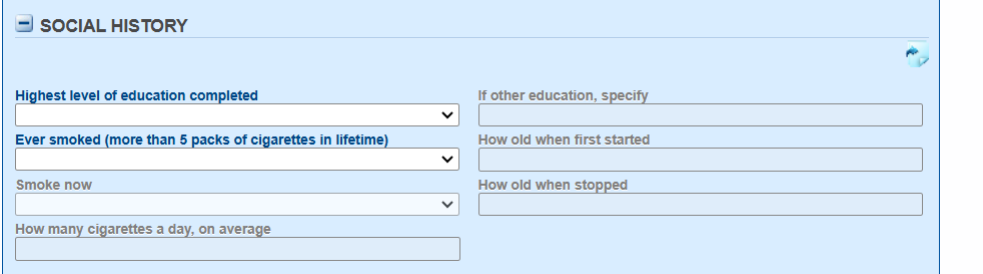
If the person has other conditions linked to their person record which contain identical sections, those records will be listed in a pop-up window. In this example, Barney Rubble has two other conditions with the identical Social History section.

The copy feature allows information to be pulled into the current record in two different ways. A red warning about the copy method appears at the bottom of the main pop-up.
- Copying data from the selected section will overwrite all data in the current section.
- If data exists in the current record but different data appears in the other record, Append will add the data from the other record after the data in the existing record. This feature is especially important in the repeating sections where the person may have multiple instances of the event in question. For example, one record may reflect a hospitalization that occurred at one point in time, while the other may reflect a hospitalization that occurred at a different time.
Best practice is the review the data in the current record and also click the View button at the right of each listed record to view the contents of that section in the other record to make a determination on whether to copy or append the information.

Tips for Easier Navigation Among Different Record Types
ShowMe WorldCare End User Manual
Users do not have to return to the search menu to access different records that are linked. It is possible to use the links within the records to move to different records by always returning to a central record.
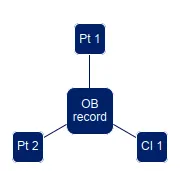
SMWC Tip: As an example, suppose an investigator is working on an outbreak with 2 linked patients (condition records) and 1 linked contact (contact investigation record).
- At the beginning of the day, the investigator searches for and opens the outbreak record.
- They click on the first patient listed to open the first patient’s condition record.
- They review/update the first patient’s condition record, click on the Administrative tab, click Submit and click the Go To button to return to the outbreak record.
- The investigator now clicks on the link to the second patient’s condition record, updates it, Submits and clicks the Go To button to return to the outbreak record.
- The investigator follows a similar process to access the Contact Investigation record.
- The investigator completed all this work with a single search!
Similar navigation could be used when reviewing a patient with multiple contacts. From each contact investigation record, the user could navigate back to the original patient to select the next contact.
Identifying New Records to Work
ShowMe WorldCare End User Manual
The previous sections in this manual have focused on finding specific records and updating the details within those records. To determine which records require action, users have multiple options within ShowMe WorldCare.
My Case Load Page
Users who are designated as Investigators can access the My Case Load menu. This menu contains two tabs, Case Load and Lab Results.
Case Load
The Case Load screen includes the same Task list available on the Dashboard. It also contains tables of any records currently assigned to the investigator. Limited filter and searching features are available for reviewing the My Records table.
- A note below the My records table indicates that Contacts and Animal Reports are not listed. Please note that Animal Reports are not utilized in ShowMe WorldCare as they are being discontinued in an upcoming release of the general WorldCare product. Information on how to work with animal records will be provided ahead of the WebSurv implementation scheduled for February 2025.
- The My Tasks table at the bottom of the Case Lab tab will not be populated as it relates to a Task feature that ShowMe WorldCare is not utilizing. Tasks will appear in the Tasks Dashboard at the top of the Case Load tab.
Lab Results
The Lab results tab contains two tables.
- The New Lab Results table will show new labs that have entered the system. By default, the Show My Records radio button is set to only display new lab results for cases assigned to the investigator. Changing this to Show All Records will show new lab results for any cases the investigator can access based on security roles.
- The Cases Missing Lab Results table is not currently being utilized in ShowMe WorldCare. Conditions can be assigned a specific number of days after which any cases without a lab result will appear on this table. DHSS programs have not yet configured any settings to use this feature.
Jurisdiction Review
Non-investigators do not have a My Case Load tab as cases are not assigned to them. However, they can review the same information using the Jurisdiction Review page. Each user’s Jurisdiction Review screen will display incoming records which that user has access to see based on their specific security settings. By default, only the first 100 records are displayed although there is a link in a note above the table that can be clicked to return additional records.

Filters at the top of the screen can be utilized to allow review of a specific type of records at one time. This may be useful in several different situations.
- An investigator is the only system user able to view their own My Case Load menu. However, any user can filter by Investigator on Jurisdiction Review to see which cases are assigned to a team member.
- Supervisors may wish to use this filter to review staff workloads.
- If an investigator is out of the office, a team member assigned to cover their workload could see which cases are assigned to them.
- The Process Status filter can be helpful for viewing groups of records that may need a particular type of action. For example, an investigator may want to first review new cases with Entered or Assigned status, then later review cases in Under Investigation status and finally check in on cases with Follow-up Due or Follow-up Pending.
The Jurisdiction Review screen allow allows for quick updates to the Process Status, Investigator and Outbreak linkages. Clicking on the entry in any of these fields in the table will open a pop-up so that the value can be changed without opening the records.
For example, suppose a manager takes the responsibility of assigning cases to their team members to ensure equitable workloads. The manager can click on any unassigned case, which appear with -Assignin the Investigator column to open the Link to Investigator pop-up to assign the case. If a team member is suddenly out on long-term leave, the manager could filter on that Investigator above and then click on their name in each record to quickly reassign those cases to someone else.
A brief description of each Jurisdiction Review filter is provided below.
- Record Type: Users can choose to view only certain types of records (All, Only Condition/Records, Only Contact Investigations, Only Contacts, Only Outbreak/Investigations, Only Group Events and Only Index Cases).
- Another filter MUST be selected for this filter to operate. For example, to view only Condition Records, the user could also filter on a particular type of condition or jurisdiction. Otherwise, the query will not run.
- The Only Contacts option shows the contact’s name in the results list but the record ID is the record that contains that contact. For example, in this screenshot, clicking on the ID for sparkle, bling (the contact) opens condition record for sparkle, glitter. To view the record for the contact themself, choose the Only Contact Investigations filter.

- Date Type/From/To: Options include Date Closed, Date Created, Date of Birth, Date of Death, Date of Diagnosis, Date of Onset, Date Received, Episode Date, Lab Specimen (Collection) Date. A date range can then be entered in the From/To fields.
- Jurisdiction/Region: Jurisdiction is the public health jurisdiction, such as Adair. Region reflects the LPHA Region. Only the jurisdictions/regions to which the user has access based on security settings will appear as choices.
- Condition/Grouping: All conditions planned for transition to ShowMe WorldCare are listed as Condition options. If a condition has not yet been transitioned to ShowMe WorldCare, no records will be returned if that selection is made. Multiple conditions can be selected using the checkboxes in front of each condition name. Condition groupings were defined by the various DHSS programs that manage the conditions and can be used for easier review of records of a particular type. For example, the General Communicable Diseases condition security group in particular contains a large number of conditions. A staff member only assigned to work Enteric conditions could select the Enteric Diseases grouping to quickly filter their list to only their conditions of interest rather than checking each individual disease in the Condition list.
- Exposure Location Type/Exposure Location: Most conditions in ShowMe WorldCare are not utilizing the section/fields where the Exposure Location Type/Exposure Location is entered. Those fields are being utilized by Lead so individuals working on Lead cases may be interested in these filters. A lengthy list of Exposure Location Types is available in a drop-down format. A specific exposure location can be selected by clicking the drill-down next to Exposure Location to access the Location Dictionary.
- Process Status: Users may wish to use the Process Status filter to review records in a certain stage of the workflow. For example, the staff responsible for malaria will likely want to filter on cases with Follow-up Due to perform treatment follow-up.
- Resolution Status: Users may wish to filter on specific Resolution Status options. For example, a Resolution Status of Pending indicates that follow-up is needed to determine the actual Resolution Status as Pending is not valid.
- Investigator: This field can be used to view records assigned to an individual investigator.
- Cluster ID: If an investigator has entered a Cluster ID on the Administrative tab of conditions, this field can be used to filter for the specific ID entered.
Search – Condition/Record
The Search – Condition/Record tab can also be used to review certain types of records. In addition to searches by the specific ShowMe WorldCare Record ID or State ID, searches can be performed by Onset Date, Condition and Recently Viewed. In this example, records with Condition of COVID-19 are displayed. Unlike Jurisdiction Review, only one condition can be selected at a time.

Group Events
ShowMe WorldCare End User Manual
The Group Events will be used in ShowMe WorldCare for collection of aggregate condition data. For example, influenza total case counts are reportable rather than individual case details in Missouri. Group events will not be implemented until the WebSurv transition scheduled for February 2025. More details about the ShowMe WorldCare use of Group Events will be provided ahead of that implementation.
Reports
ShowMe WorldCare End User Manual
ShowMe WorldCare contains several built-in reports. In general, selected reports only return data that a user is allowed to access based on their specific security permissions. Certain reports such as the cumulative reports may allow statewide data but not on an individual level. Although a user might be able to select a different jurisdiction or condition group than they are allowed to see in their security, no records will return.
Reports generate in a separate window and can be downloaded as PDF files or printed.
Please Note: Certain report types that involved potential exports of line-level protected health information (PHI) are only allowed for users in jurisdictions that have completed a data sharing agreement outline protective measures for that data with DHSS.
Cumulative Report
Cumulative reports are sometimes referred to as Weekly Place of Report and provide information on a selected week. It returns the number of conditions created for a specified time period and can be filtered by various fields such as Condition Group, Transmission Status, Resolution Status and Process Status. After making the desired selections, click Submit.
Although only groups, not specific conditions, can be selected on the Cumulative Report, the report returns a list of the specific conditions within the selected condition group(s). For example, if Heavy Metals is selected, the counts for Arsenic, Cadmium, Copper, and Mercury may appear in the report. To see which conditions are included in which group, please consult the Conditions by Report Group appendix at the end of this manual.
Some helpful tips for working with the Cumulative Report include:
- If no condition groups are selected, the report will return counts for all conditions which the user can access.
- When selecting condition groups, be sure to highlight the condition group and click the Add button to add the group to the selection box. The condition group is not fully selected until it appears in the selection box.
- Conditions which have no records meeting the criteria selected will not be listed on the report, even if they fall within the selected condition group. In other words, if there were no cases of a particular disease in the chosen time period, that disease will not be listed. Likewise, condition groups were set up based on the final condition list prepared by the DHSS programs. Conditions that have not yet transitioned to ShowMe WorldCare will not appear if their condition groups are selected.
- The Date Type defaults to Closed. In most situations, users may want to choose a different date type such as Create, Onset, or Last Updated.

The resulting report displays the cumulative number of records that met the specified criteria for that time period.

Custom Export
The Custom Export is a very powerful reporting tool. A user can choose specific values from designated fields to run queries. The first section contains various filters that can be used to select certain groups of records. The next section allows for Field selection. The user must identify which form they wish to pull data from, followed by a section on that form, followed by a field in that section. In the example below, the current field section is the New taste disorder fields located in the Signs and Symptoms section of the COVID Clinical form. (In other words, this question appears on the Clinical tab of COVID-19 condition records.) Clicking add moves the selected field to the Field list section. In this example, the query will return any COVID-19 condition records created during the month of August 2024 and will contain the fields First Name, Last Name, DOB and New taste disorder, as shown in the field list.

Within the Field List section, the value in the Field Alias column will appear as the column header in the report. In this screenshot, the First Name, Last Name and DOB field names are fairly obvious. However, the New taste disorder field will be named StandardSxNewTasteDi…Users can click in the Field Alias column of the table to create a custom name if desired. Here the Field Alias has been changed to New taste disorder.

The screenshot on the prior page will return all COVID records during that timeframe. To include only those records in which the person had a New taste disorder in the report, the Field Filter button can be used.

After making all desired selections, click Generate File at the bottom of the screen. This report returns a line list of data.
The Custom Export contains a Templates feature so that specific queries can be saved for reuse. For example, DHSS could develop a basic template for pulling a list of cases of a particular condition. After loading the template, but before actually generating the file, users can make any customizations needed, such as selecting a different jurisdiction, filtering for a particular investigator, updating the dates of concern, etc., before clicking the Generate File button. This prevents the template list from filling up with multiple reports that are only slightly different. However, there are a couple of precautions that need to be taken to keep this feature user-friendly.
- Please DO NOT resave a template created by someone else. This will impact the template for any other users that may need it, and the template will have to be rebuilt.
- Before creating and saving a new template, please review the existing templates to see if a similar template exists that can be slightly modified. This will keep the list shorter and easier to use.
- When creating a new template, please keep it generic so it can apply to more users. For example, instead of creating a county-specific version of an export such as “New Mercury Cases in ABC County”, save a “New Mercury Cases” template so it can apply to ANY system user if they select their own county after loading the template and before generating the file. If the template list becomes so long that it is difficult to use, DHSS may have to begin removing templates that seem duplicative. (This was previously an issue in EpiTrax and templates had to be removed based on the number of complaints about the long list.)
De-Identified Reports
The De-Identified Report generates a pivot table which allows data to be further analyzed in Microsoft Excel.

EPI Curve
The EPI Curve report greats a graph showing the number of confirmed cases by disease week compares this to a specified historic baseline.

Ranged Reports
The Ranged Reports provide several quick options with filters. The query screen differs with each report type. Examples of report types that can be run from within the Ranged Reports menu are:
- Cumulative Disease Report
- Form Export
- Image Export
- Incident & Investigation Export
- Outbreak/Investigation/Group Event Export
- Outbreak/Investigations By Disease Report
- RVCT Export (Tuberculosis)
- RVCT FollowUp 1 Export (Tuberculosis)
- RVCT FollowUp 2 Export (Tuberculosis)
Real Time Graphs
This report allows various types of data to be displayed in graphical format. Users can set various parameters. Options for Output Type include:
- Disease Incidence by Age Group
- Disease Incidence by Race/Ethnicity
- Frequency and Incidence Rates by Jurisdiction for Specific Region
- Incidence Rates by Age Group
- Incidence Rates by Month
- Incidence Rates by Race/Ethnicity
- Incidence Rates by Year
- Number of Cases by Age Group
- Number of Cases by Month
- Number of Cases by Nationality
- Number of Cases by Race/Ethnicity
- Number of Cases by Year
Dashboards
ShowMe WorldCare End User Manual
ShowMe WorldCare contains a dashboard feature in which clients can create custom dashboards. Dashboards apply across all users. At the current time, the only dashboard in use is the Tasks list. Additional dashboards may be designed in the future.
Other Reports and Info
ShowMe WorldCare End User Manual
Some users may be able to view an Other Reports and Info menu item. This is a place within ShowMe WorldCare where custom reports can be posted for other users to run. No custom reports have currently been created in ShowMe WorldCare so this option has been hidden for most users.
Dictionaries
ShowMe WorldCare End User Manual
Most users will have view-only access to certain dictionaries. View access is required to allow users to select items from that dictionary in various fields throughout the system. For example, the Location Dictionary is tied to many fields.
Write access to dictionaries is generally restricted to a limited number of staff at DHSS. This prevents duplicate entries, improves consistency across entries and ensures that dictionary entries can be configured as needed related to other parts of ShowMe WorldCare. For example, Locations and Report Sources must be properly linked to incoming data submitters utilizing those Locations and Report Sources for data to load correctly.
Help
ShowMe WorldCare End User Manual
The Help menu item in ShowMe WorldCare provides two options: About and Help Index (End User).
- About: This page contains information about the version of ShowMe WorldCare in use and describes the policies and monitoring in place for ShowMe WorldCare.
- Help Index (End User): This item links to the Clinisys WorldCare manual. This is a searchable document in which users may find more information about various parts of the WorldCare product. Please note that this manual describes the general WorldCare product, not the customized ShowMe WorldCare version.
Appendix C: Acronyms
ShowMe WorldCare End User Manual
| Acronym | Description |
|---|---|
| AFM | Acute Flaccid Myelitis |
| BLS | Bureau of Labor Statistics |
| CI | Contact Investigation |
| CJD | Creutzfeldt-Jakob Disease |
| CPO | Carbapenemase-Producing Organisms |
| DHSS | Missouri Department of Health and Senior Services |
| DI | Disease Incident (also known as condition record) |
| EFC | Electronic Filing Cabinet – used for attachments to records |
| ELR | Electronic Laboratory Reporting |
| ITSD | Information Technology Services Division |
| NAICS | North American Industry Classification System |
| NTM | Non-Tuberculosis Mycobacterium |
| RSV | Respiratory Syncytial Virus (RSV) |
| SARS-CoV | Severe Acute Respiratory Syndrome-associated Coronavirus Disease |
| SMWC | ShowMe WorldCare |
| SSO | Single Sign-on |
| STEC | Shiga Toxin-producing E. coli |
| TB | Tuberculosis |
Appendix D: Version History
ShowMe WorldCare End User Manual
| Revision Date | Revisions |
|---|---|
| August 26, 2024 | Document created |
| September 26, 2024 | Added table of contents and Bookmarking ShowMe WorldCare section |
| September 30, 2024 |
|
| December 6, 2024 |
|
| December 13, 2024 | Added Copy Section Feature information |
| January 8, 2025 | Added Appendix for Conditions by Report Group |
| January 9, 2025 |
|
| January 17, 2025 | Added information about Custom Export templates |
| January 24, 2025 | Added information about closing tasks |