

ShowMe WorldCare End User Manual
Condition Record – Laboratory Tab
The Laboratory tab contains information about any testing that has been performed on the individual related to this condition.
Some conditions will contain an extra section at the top. This section typically contains questions from existing case report forms that may not be supplied by certain incoming laboratory reports. Please contact the appropriate condition program or District Epidemiologist for assistance with completing this section. These questions generally do not auto-populate and will need to be manually entered. As an example, an extra testing section from COVID-19 is shown below.

All conditions with a Laboratory tab contain a Lab Summary table. An example of this table is shown below. The columns included in the table may vary by condition. For instance, environmental conditions typically exclude the Resulted Organism column as those conditions do not involve organisms. If no test results have been received, the table will still appear but with a blank row ID 001 as shown below.

SMWC Tip: Clicking on one of the fields in the Lab Summary table will open the more detailed section about that specific test in the following Laboratory Information w/Provider & Facility (system) section. Otherwise, click the + symbol at the left of the section heading to expand all test results.
A screenshot of this section is shown on the next page.
At the very top of this section are two fields that can be used to manage exactly which test results are displayed.
- Show Results Beginning allows a date to be selected. For example, a person with a lifelong condition may accrue a lengthy list of tests over time. This field could be used to view only those from a recent time period.
- The Show All Results for Patient check box can be used to remove any date filters that have been entered and display all results again.
- SMWC Tip: Searching in this section could result in the loss of any unsaved data, so it is advised to save first by pressing ALT+S or clicking the Save button at the bottom of the tab. A warning message will appear if a user attempts to search without saving. Click OK to exit the warning and then save the data.

Laboratory Information w/Provider & Facility (system) Fields
Accession Number: This is a unique number used by laboratories to identify specific specimens/samples. This may also be listed as Specimen ID on laboratory reports.
Order Result Status: This field will be populated for electronic messages.
Specimen Collected Date: The date the specimen/sample was collected should be entered here.
Specimen Received Date: This is the date that the laboratory received the specimen/sample.
Specimen Source: The type of specimen/sample collected can be documented here.
- SMWC Tip: Specimen Source contains a VERY LONG list of options. However, this is a typeahead field. Click on the field and start typing the specimen source that is needed to jump to that section of the list.
Specimen Body Site: Some conditions note the Specimen Body Site along with the Specimen Source. If needed, the Specimen Body Site can be selected here.
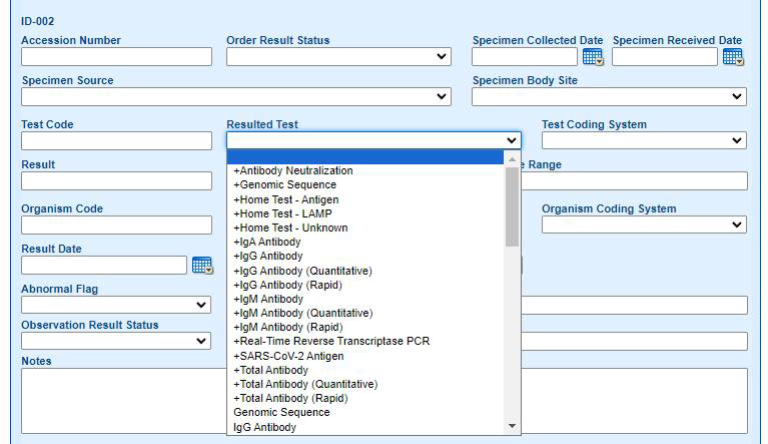
Test Code/Resulted Test/Test Coding System: For electronically received tests, a test code that represents the type of test performed will appear in the Test Code field. The coding system that applies will be identified in the Test Coding System field, where L means Local Code and LN means LOINC. A label identifying the specific test type will appear in the Resulted Test field.
- SMWC Tip: Users performing manual entry of lab results only need to select the test name in the Resulted Test field. When manually entering lab results, please select one of the options beginning with a + sign in front of the test type. These appear at the top of the list. The options that do not begin with a + sign are used for ingesting electronic test results.
Result/Units/Reference Range: These fields relate to numerical test results. If a numerical result is provided, the units for that numerical result should be provided in the Units field. Numerical test results are typically compared to a range of “normal” values, which should be entered in the Reference Range field as that information is necessary for interpreting numerical test results.
Organism Code/Resulted Organism/Organism Coding System: These fields relate to tests with results such as Positive or Negative. The Positive, Negative, etc., label will appear in the Resulted Organism field code. The code that relates to that result will be listed in the Organism Code fields, while the Organism Coding System field displays the type of code (L for LOINC or SNM for SNOMED).
Result Date: This is the date that the laboratory completed the test and obtained the result.
Performing Facility ID: Laboratory name must be entered here.
The following fields may be populated if the information is sent in electronic messages. Manual entry users may need to enter this information if it appears on faxed or other lab reports.
- Abnormal Flag
- Relevant Clinical Information
- Observation Result Status
- Reason for Study
- Notes
Provider Name: This field refers to the ordering provider. Manual entry users will need to click on the drill-down icon next to the field to select the appropriate provider. This will open the Report Source Dictionary. Users can search by provider name at the top of this box or use the PREV/NEXT links in the lower right to move through the list.
- If the needed provider is included in the Report Source Dictionary, click the provider’s name and scroll to the bottom of the pop-up to click OK. This will automatically populate the following provider fields: Provider ID, Order Call Back Phone, Provider Address, City, State, Zip, County, Provider Fax and Order Call Back E-mail.
- If certain fields are missing information, the user can enter them into the record. However, this will not update the Report Source Dictionary. Please submit a ShowMe WorldCare Help Desk ticket with the Provider Name, Provider ID and any additional information that needs to be entered for that provider.
- If the appropriate provider is NOT listed in the dictionary, click cancel to exit the Report Source Dictionary Pop-up. In the Provider ID box, enter the Provider Name. Enter any other information that may be available about the provider in the appropriate fields. DHSS will monitor the Provider ID field to look for provider names entered there so that those providers can be added to the Report Source Dictionary. If the information is entered as noted here, a ShowMe WorldCare Help Desk ticket does NOT need to be entered.
- If drug susceptibility testing was performed, click the Drug Susceptibility Results button to add those results in a pop-up window. After entry of the first susceptibility result, the Add button can be used to add a new section if another result needs entered. Otherwise, click OK when entry is complete.
- SMWC Tip: Some conditions may contain an additional Drug Susceptibility section at the top of the Laboratory tab. If that section is provided, please be sure to also complete the section at the top of the Laboratory tab as that is where information used in reporting to the CDC will be collected.

After entering the available laboratory test information for the first test that needs to be entered, click Add to enter another test. Otherwise, Save the record. Then click Next to move to the next tab, typically the Clinical tab.