

MISSOURI WISEWOMAN PROGRAM MANUAL
DATA ENTRY/MOHSAIC
WISEWOMAN providers must collect and store data on WISEWOMAN services. The WISEWOMAN Program provides paper forms for WISEWOMAN services. Information gathered on these paper forms represents all WISEWOMAN data that must be manually entered in the Missouri Health Strategic Architectures & Information Cooperative (MOHSAIC) web application. MOHSAIC is an online data system used to collect and manage participant service records for the SMHW and WISEWOMAN programs. It is not an electronic health record (EHR) and should not be used to gather any information beyond required data elements used for cardiovascular screening surveillance. WISEWOMAN forms are located on the DHSS website [NEEDS LINK].
MOHSAIC also tracks funding allocations and expenditures and is linked to the Statewide Advantage for Missouri (SAM II) accounting system for reimbursing providers. Prior to reimbursement, WISEWOMAN staff review all submitted forms to ensure provided services meet program standards. Based on data entered, agency grant activity statements are generated within the MOHSAIC application—making MOHSAIC data entry the only way WISEWOMAN service delivery providers can access grant funds. MOHSAIC submission will automatically generate proper CPT codes for claim reimbursement for WISEWOMAN services.
Uses of Data in the WISEWOMAN Program
- Ensure participant eligibility
- Monitor grant spending and screening goals
- Monitor data across all service delivery providers to ensure volume of data entry errors is minimal
- Ensure clinical quality of services provided meet CDC indicators
- Identify providers in need of funding increases or decreases
Minimum Data Elements
MOHSAIC data is submitted to the CDC for review two times each fiscal year. WISEWOMAN minimum data elements (MDEs) are a set of standardized data variables needed to ensure that consistent and complete information is collected for each WISEWOMAN participant. MDEs serve the purposes of describing, monitoring and assessing individual and program progress, which are captured using MOHSAIC. Each data element has a valid range. If an entry is made that is outside of the valid range, it will create an MDE error and the WISEWOMAN staff will contact providers regarding data in this range while reviewing claim submissions. To assist with entry of accurate data, MOHSAIC will create an error message for providers if an “out of range” value is entered. When this occurs, please contact WISEWOMAN staff to assist with submission.
WISEWOMAN MDE 18.3 Quality Check and Error Values

MOHSAIC Access
The MOHSAIC application is located on the MDHSS Portal at:
http://webapp01.dhss.mo.gov/SMHW/Default.aspx
https://webapp02.dhss.mo.gov/SMHW/Default.aspx
SMHW/WISEWOMAN Providers do not need to install additional software beyond a web browser. MOHSAIC data entry is a WISEWOMAN contract requirement; therefore, it is important that MOHSAIC users at each provider agency site have access to a MOHSAIC-supported web browser.
Requesting Access to MOHSAIC
To apply for access to MOHSAIC for SMHW/WISEWOMAN, follow the instructions below. If assistance is needed regarding MOHSAIC, please contact the WISEWOMAN staff or your RPC.
When an existing MOHSAIC user no longer needs access for WISEWOMAN data entry, the provider must report user’s name to program staff within 15 days.
***If you have an Automated Security Access Processing (ASAP) profile already and you know your login credentials, please skip to STEP 2: Request SMHW Access. If you are unsure if you have an ASAP profile, use the following steps to help determine your status:
- If you already have a local public health agency (LPHA) email account, DHSS health applications and/or Department of Social Services (DSS) prod/mainframe access, you most likely have an ASAP profile
- If you try to create an ASAP profile and you receive a message indicating the first and last name are already in use, please contact the ITSD Call Center for assistance at 1-800-347-0887—this likely means you have an ASAP profile and ITSD can assist with profile updates, password resets, logging into ASAP and/or submitting requests
Step 1: Creating an Automated Security Access Processing User Profile
- Open Internet browser and enter address http://webapp02.dhss.mo.gov/asap_web/ASAPLogin.aspx
- Select “Yes” for any security messages
- Select the “NEW USER” option

- Enter your first name, last name, last four digits of your SSN and preferred first name
- Click the “CREATE USERID” button
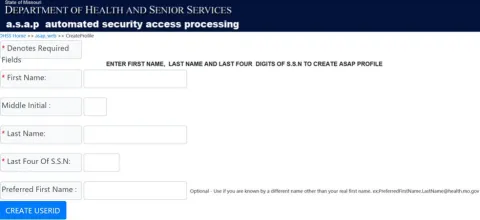
- Make note of your UserID
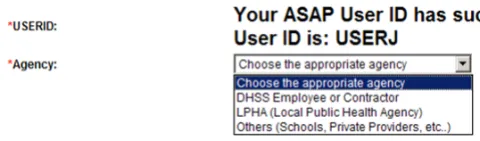
- Select “Others (Schools, Private Providers, etc.)” for the Agency
- Select “DHSS DIVISION OF COMMUNITY HEALTH” for Local Security Officer County
- Select “SHOW ME HEALTHY WOMEN LSO (Paula Fox)” for Local Security Officer

- Type your work street number (it will provide a drop-down list) and select your provider’s address

- Enter your e-mail address, telephone number and fax number

- Enter a password
- Retype your password
- Enter a challenge question (this should be something only you know the answer to)
- Type the response or answer to the challenge question
- Retype the response or answer to the challenge question
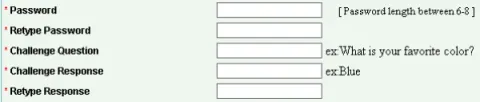
- Select “CREATE PROFILE”

- You should see a message about the profile being successfully created. Please make note of your User ID and password.

Step 2: Request SMHW Access
- Open Internet browser and enter address http://webapp02.dhss.mo.gov/asap_web/ASAPLogin.aspx
- Select “Yes” for any security messages
- Type the User ID and Password you created in Step 1
- Select the “SIGN IN” button
*If ASAP did not prompt you to create a password, your password was automatically set to first initial of first name, first initial of last name and last four digits of your SSN*
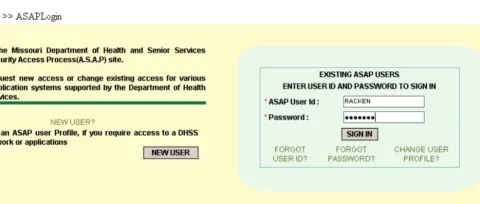
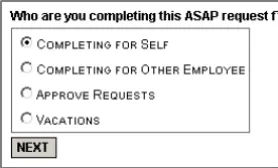
- Select the “Completing for Self” option
- Select the “NEXT” button
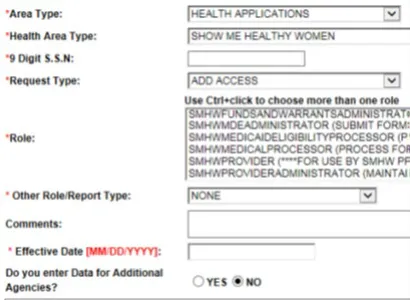
- Select “HEALTH APPLICATIONS” for Area Type
- Select “SHOWMEHEALTHYWOMEN” for Health Area Type
- Select “ADD ACCESS” for Request Type
- Select “SMHWPROVIDER (***FOR USE BY SMHW PROVIDER ONLY)” from the Role drop down list
- Select “NONE” for other role/report type
- Type in any comments (*optional)
- Type in the Effective Date
- If not entering data for additional agencies, leave defaulted to “NO”
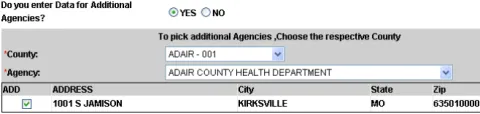
- To select other agencies, select “YES” and pick the county and the agency from the dropdown list
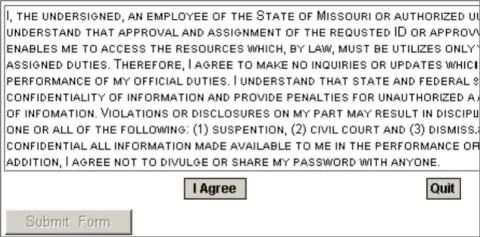
- Select the “I Agree” button
- Select the “Submit Form” button
- A message should appear stating the request was successfully completed
- Print a copy of the completed form for agency records

If you experience any problems or have questions while using the ASAP system, please notify the DHSS ITSD call center at 573-751-6388/1-800-347-0887 or support@health.mo.gov.
Navigating MOHSAIC
MOHSAIC Helpful Tips
- Use Internet Explorer browser
- Check compatibility setting (mo.gov and mo.dhss)
- Check text size for screens with overlapping words or adjust zoom setting
- Turn off pop-up blockers (MOHSAIC uses pop-up screens for data information)
Steps to Access/Logging Onto MOHSAIC and SMHW Application
- Open the Internet browser and enter the Web address on the address line: https://healthapps.dhss.mo.gov/smhw/
- If this is the first time to login, a password must be established:
- Use the username and assigned password provided to you by e-mail from SMHW, when approved
- User name is usually the first five letters of last name and first name initial
- Initial password is first and last name initials and last four digits of SSN
- Click on “Change Password”
- If you do not login to MOHSAIC for 30 days, the system will “lock out” and you must call the ITSD Help Desk at 1-800-347-0887 to unlock and enter new password
- After a password is established, the program will ask to change your password every 30 to 60 days
- Password can be numbers, letters or a combination and requires six (6) to eight (8) characters and one numeric value
- Once logged in, your agency name will appear and stay constant throughout the application
- Select the “Login” button to proceed

Entering or Viewing a Participant in MOHSAIC
- Log on to the SMHW application main screen
- Select the “Client” section on the menu bar

- Choose the “Submit New Forms/Billing” tab under the “Client” section
- In the “Submit New Forms/Billing” tab under the “Client” section, type the client’s name (Last, First) and hit


- If the client is already registered, MOHSAIC will auto populate the client’s information— Do not click “return” to allow MOHSAIC adequate time to search
*Note: If the screen returns more names than the screen will hold, use the scroll down bar to see the full screen—if there are more than 15 names on the screen use the double arrow at the bottom of the screen to proceed to the next search result screen* - If the client name appears, select the correct name by clicking on it and verify the name by checking the date of birth (DOB) and DCN number, if available, as the client may be in the system with multiple names

- The client information screen will display the client demographic information
- If any information is missing, add the correct information in the “View/Edit Client Information” screen


- If the client’s name is not in the database, this screen will say “The client was NOT found in MOHSAIC. Click OK to add the client. Click CANCEL to search again.”
- This screen will also allow you to complete an extended search using the client’s DCN or Social Security Number (SSN)
- The search will check the MOHSAIC and DSS databases
- If the participant name is not in the system, the screen appears with the “The client was NOT found in MOHSAIC. Click OK to add the client. Click CANCEL to search again” message to prompt entry of a new client in MOHSAIC


- Select “OK” to add client to MOHSAIC, enter the following information and select “REGISTER AS MEDICAL CLIENT”
- Last name
- First name
- Date of Birth
- Race
- Ethnicity
- Gender
- Social Security Number (SSN) with no spaces or hyphens
- Departmental Participant Number (DCN)
- Phone number
- Address
- If the system does not recognize address, “Address Verification” will pop up
- If the address is correct, enter the county and click “save” or change the address to a valid address and click “save”
- If the county and address match the database, the pop-up box will turn orange
- If not and both fields are correct, call SMHW/WISEWOMAN at 866-726-9926 to request an address fix—typically, this fix will be done overnight
Checking Medicaid Information
- After entering client information, proceed to the “View Medicaid Information” tab under the “Client” section (information is transferred from the DSS database)
- If the client is not on Medicaid, the screen will be empty—this screen is “read only” and will display the current client at the top of the screen
- If a client name is displayed at the top of the screen and the client is on Medicaid, the screen will be filled in, showing all of the participant and guardian information, as well as managed care information
- If there is an open date but no close date, the participant is on some sort of assistance and has an active Medicaid case—a client with ME Code 05 (Full Medicaid) or E2 (AEG) with no end date or during the time of services provided is not eligible for WISEWOMAN services.
- Please remember, when pulling up or entering another client under “Client Demographics,” verify that the client’s address and other personal information is correct—we have encountered several forms that were entered for a different client, but only the client name was changed, leading to duplicate records in the system and resulting in errors on the data submitted to CDC.
Until a software programming change is complete, please make sure the DOB and SSN are correct for the participant form being entered.

Entering Provider and Form Type Information
- Select the “Client” section and “Submit New Forms/Billing” tab
- Search or enter the client, as outlined in the Program Manual
- On the “Provider Information” section, select “Regular Billing”
- Type in the provider’s name and select the appropriate provider— MOHSAIC will generate the provider’s address, when selected
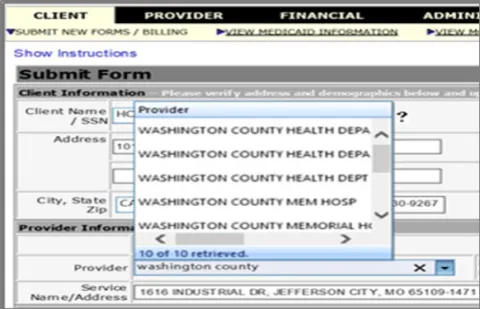
- When entering information in this section is complete, proceed to the next section “Form Type/Version”
- Select “WiseWoman Form” under “Type”
- Select form (Forms for Services Provided On or After September 30, 20_ _) that corresponds to the participant’s DOS and the appropriate grant year under “Version”
- Please note that by default, MOHSAIC software automatically selects the version based on the present date
- To enter a form with a different date of service, select a different version from the drop down box—this is likely to occur during the first few months of a grant year when a provider could be entering multiple versions of the forms

Filling Out A Form
- Verify all of the client and provider information entered on the “Submit New Forms/Billing” screen and click “Create Form” to generate a new WISEWOMAN form (MOHSAIC form screen will match the paper forms provided by WISEWOMAN)
- Enter the current date for “Date Form Received” and the date WISEWOMAN services were completed for “Service Date”
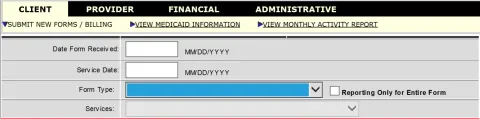
- Use the dropdown box to select the appropriate form type and services
- If content of the drop down box is known, then tab to the empty field and type the first letter and the word will appear
- Once a form type and service is selected, MOHSAIC will generate the corresponding form for completion that matches the WISEWOMAN paper forms

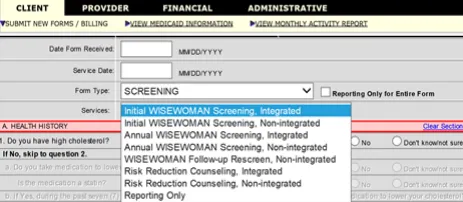
- To fill in the forms use the mouse, tab key or the space bar
- To use the mouse, click on the drop down arrow and then select the appropriate choice
- If using the mouse for buttons, click inside the circle for all forms
- Tab to the next field
- When tabbing and encountering a square radio button, hit the space bar to fill it in
- Tabbing to a radio button will automatically fill in the circle when highlighted
- Hit “Submit” once all information is entered appropriately in the form
Reporting Only Submission
If a WISEWOMAN participant receives cardiovascular screening services that do not meet the requirements for a valid WISEWOMAN screening, a MOHSAIC claim submission can be entered as “Reporting Only.” A Reporting Only claim will have no reimbursement cost for the provider, but will be used to track data on WISEWOMAN participants. By checking the “Reporting Only for Entire Form” box or “Reporting Only” as the service, the WISEWOMAN participant’s data will still be submitted in MOHSAIC, but no reimbursement will be issued.
Examples of Appropriate Reporting Only Claims Include:
- Incomplete screening (e.g. missing labs, only one BP measure, no height/weight)
- Additional labs not covered by the WISEWOMAN Program
- Diagnostic information from an outside provider
- Services covered by another funding source


Provider Contract Information
To Review Provider Contract/Funding Information, Follow These Steps:
- Select the “Financial” section, followed by “Provider Contract Maintenance” tab
- Search for a provider
- This screen tracks and displays the amount of funding given, amount billed, amount paid and amount available
- The billed amount subtracts from the amount available upon submission
- If this information does not correspond with your records, contact the WISEWOMAN Education Coordinator at 866-726-9926
- WISEWOMAN encourages you to monitor your funds through your internal system

Review Pay Status of Forms
There Are Four “Form Status Types” in the Review and Payment Process of the WISEWOMAN Program:
- Submitted By Provider—claim form has been submitted by provider for review
- Approved—claim form has been reviewed by WISEWOMAN staff and approved for reimbursement
- Released To Finance For Payment—claim form has gone through a warrant and electronically transferred
- Check Mailed—payment voucher(s) have been mailed to the providers from the WISEWOMAN central office, outlining the claims and services that have been paid and the amount reimbursed with WISEWOMAN funding
To Search and Review All Submitted Forms for a Specific Participant or Provider, Follow These Steps:
- Select the “Financial” section then the “Review Pay Status of Forms” tab
- Search for either a participant or provider by entering their information and selecting “SUBMIT”
- Searching for a participant/provider will display all forms submitted for that participant/provider and the pay status
- Click on “Form Status” to view specific form statuses or click multiple items to display all the selections
- Entering the date range will display all forms status for the range
- The “Form Type” and “Total Amount Paid” columns show in blue—selecting either one brings up the form or the claim screen to review in a “read only” format

